Introduction: Config 2026 moves Figma past pure vectors
We've already covered every announcement from Config 2026, from Code Layers to the upgraded agent. Two features deserve their own deep dive: shaders (fills and effects) and Weave, the multimedia generation tool now built into Figma.
Both share the same ambition: bring generative AI straight into the canvas, without ever forcing designers to leave Figma to produce a texture, an image, or a video.
Shaders: the canvas becomes programmable
Until now, Figma's gradients and effects relied on pixel math that stayed invisible to the user. With shaders, that mechanism is finally exposed: we manipulate the visual material directly, pixel by pixel, in real time.
Shader fills: sculpting texture instead of applying it
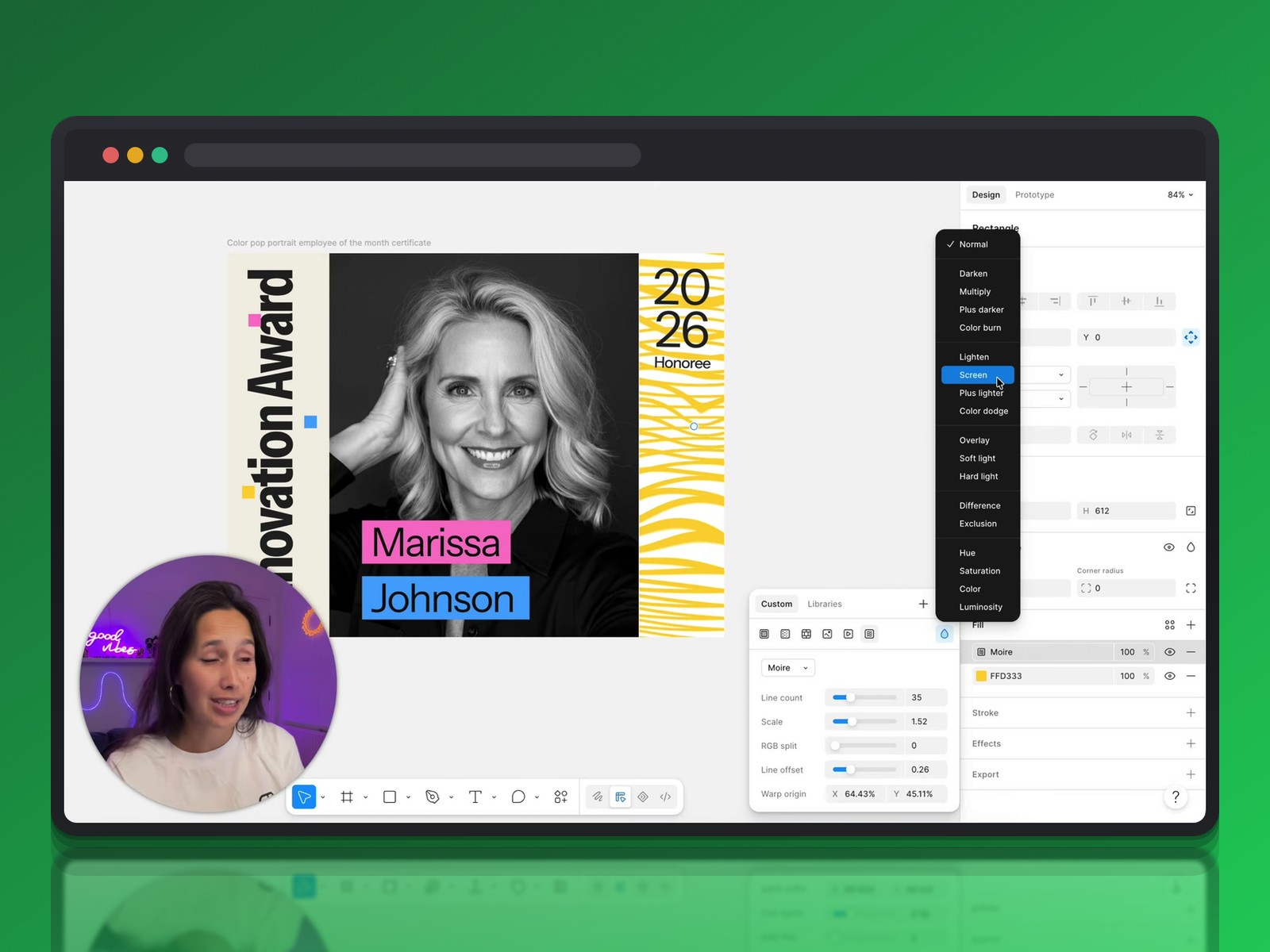
Shader fills apply like smart fill layers, with precise variables: line density, chromatic aberration via RGB split, and a stroke origin we can drag directly on the canvas.
The real skill is in blend modes. Soft Light, Screen, or Overlay let the original artwork show through instead of being buried under the texture — worth testing from the first pass.
Shader effects: distortion, hatching, and animation
Shader effects alter the structure of an existing image or text: a water caustic look, illustrative hatching, or a frosted-glass refraction applied to typography.
Their compatibility with Figma Motion changes the game: keyframing a shader's amplitude or frequency turns a static texture into a fluid animation without ever leaving the design tool.
Generating your own shader with the AI agent
Beyond the default library, the Figma agent can build a custom shader from an existing effect. The agent runs a real technical back-and-forth, asking which variables should stay adjustable before shipping a reusable tool fully wired into the workflow.
Weave: from isolated prompts to a reusable node workflow
Weave starts from a frustration shared by many creatives: the "prompt, iterate, repeat" cycle that forces us to jump between AI models with no continuity, starting from zero on every new project.
A node canvas that connects everything to everything
Weave answers with a node-based environment: a text node defines a context, wired into an image model like Flux 2 Pro or Flux Pro. We can wire several models in parallel — Nano Banana 2, Recraft 4 — to compare outputs on the same prompt before picking one.
A comparison node places the source image next to its edited version behind an interactive slider, so we're never navigating iterations blind.
Variables and iterators: scaling without losing quality
The Text Iterator turns a static prompt into a dynamic system: changing a single word in the source node — a destination, a setting — reruns the entire generation chain while keeping visual consistency, anchored by a reference image that locks in subject identity.
This variable logic is what really sets Weave apart from a plain image generator: we stop creating visuals one at a time and start building a system that can produce dozens on demand.
From image to video, without switching tools
The generated image becomes the first reference frame for a video model like Gro Imagine Video or Cedance. Duration, resolution, and camera movement are all set in the same panel, and re-rendering the clip doesn't require touching the source image.
Pure graphic nodes with no AI involved stay available for color correction or cropping — manual control still has its place alongside automated generation.
Brand use case: automating without losing visual identity
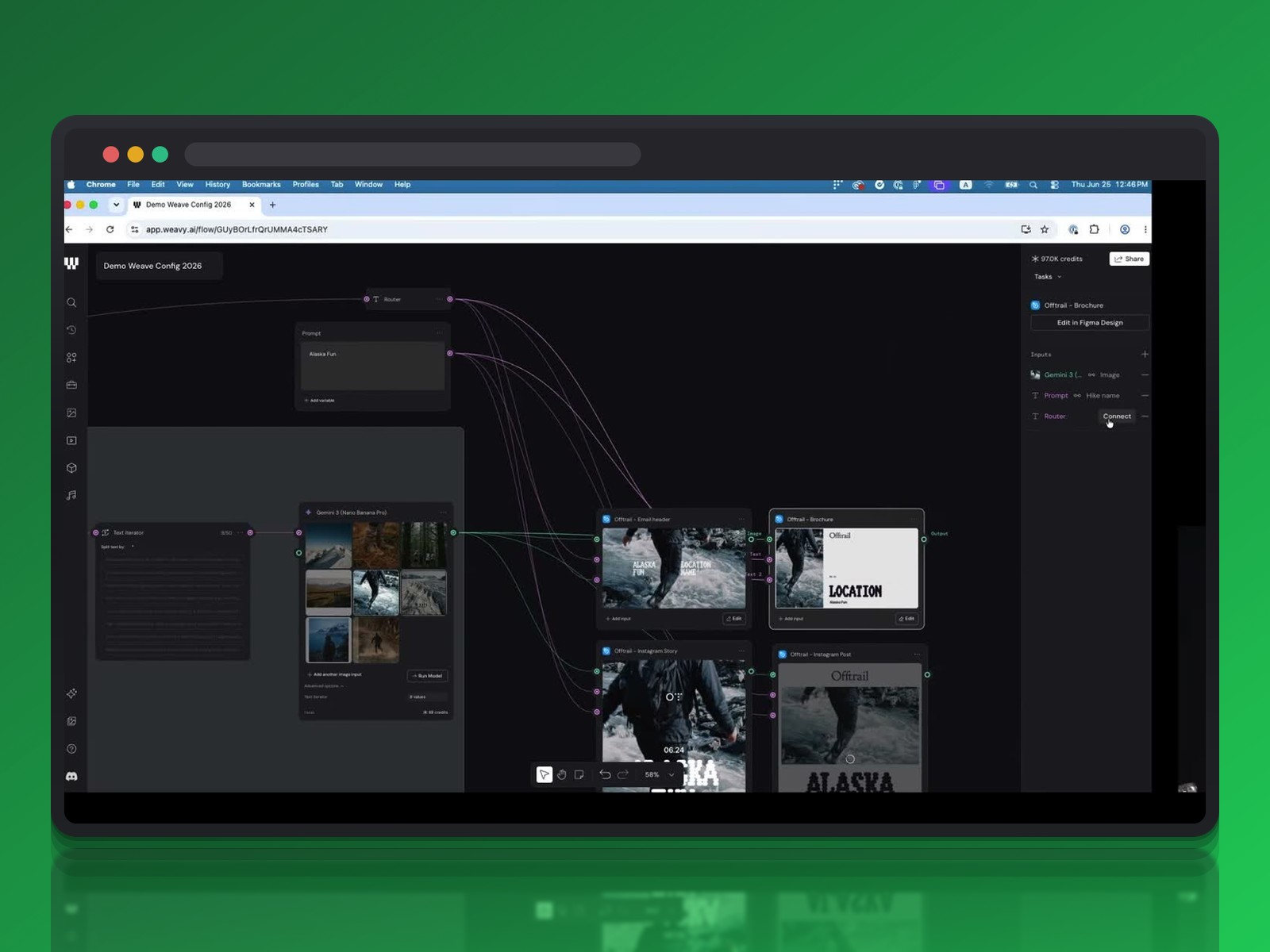
The example built around the hiking brand Offra shows the tool's professional reach well. A language model like Gemini Pro or GPT-4 analyzes the brand's reference images to extract a production brief: photographic style, composition rules, mood.
That brief then drives the text iterator: swapping one destination for another (Alaska becomes Australia) instantly regenerates a set of images that stay on-brand, because they come from the style analysis rather than a hand-rewritten prompt. The Figma Node closes the loop by connecting the design system's components and colors directly into the workflow.
Weave as a Figma tool: real democratization
The most important thing both demos have in common is turning a complex workflow into a Weave Tool that any designer can use without node-based expertise. Adding a logo to a product shot, virtual clothing try-on, background replacement: each tool hides a complex pipeline that only advanced users ever need to open.
That abstraction layer is what separates Weave from consumer image generators already covered on Krea.ai: Weave isn't chasing the single best image, it's chasing repeatability at team scale.
What this actually changes for designers
- shaders move part of texture work from fixed filters to programmable parameters
- Weave moves prompt work from one-off generation to building reusable systems, designed once and rerun at will
- in both cases, Figma's AI agent acts as a translation layer between designer intent and the underlying code or model
The risk both demos flag is over-engineering: asking for full manual control over every shader or Weave variable adds complexity that isn't always worth it for a one-off use.
Conclusion
Shaders and Weave follow the same trajectory: pulling AI generation out of the isolated chatbot and anchoring it in the production canvas. Shaders make texture programmable and animatable; Weave turns a prompt into a reproducible system, all the way down to a simple tool in Figma's left-hand panel.
For a design team, the question is no longer which image generator to try next, but where to place these new nodes and parameters inside a workflow that already exists.
Further reading
This synthesis article is based on the following videos:
- Figma Shader Effects & Fills: Complete Overview + How to Create Your Own (TD Sunshine)
- Figma deep dive: Weave | Config 2026 (Figma)
- Figma Weave for Beginners: Build Your First AI Workflow (DesignWithArash)
Articles generated via Vidiome, then merged and enriched.