
Introduction: an agent that lives on the canvas, not a chatbot on the side
Since Config 2026, the Figma Agent is no longer a separate chat window. It sits directly in the side panel, in a contextual bubble on hover, or in a mini-chat via Cmd + Enter.
We watched Figma's official deep-dive, a hands-on tutorial connecting Figma to Cursor via MCP, and an independent first-look review to understand what this agent can actually do.
Verdict: the agent isn't here to replace our aesthetic judgment. It absorbs the chores — cleanup, content, first-pass code — so we get more time for art direction.
Three ways to call it, without cluttering the canvas
The agent offers three entry points: the side panel, a contextual bubble on hover, or Cmd + Enter for an instant mini-chat. If the bubble gets in the way of a precise manipulation, Cmd + K hides it while we work.
Every conversation syncs into a centralized history: clicking a past change jumps us right back to where the action happened, so we never lose the thread of an iteration.
Connecting the agent to your ecosystem: MCP connectors
The designer's biggest frustration is the constant back-and-forth between the creative tool and external sources of information. MCP connectors remove that back-and-forth entirely.
Notion, GitHub, Slack: the brief that never needs retyping
We can pull a brief from Notion, generate designs in Figma, then push our edits back to the source document with precise references. This two-way sync eliminates the transcription errors that creep in between product manager and designer.
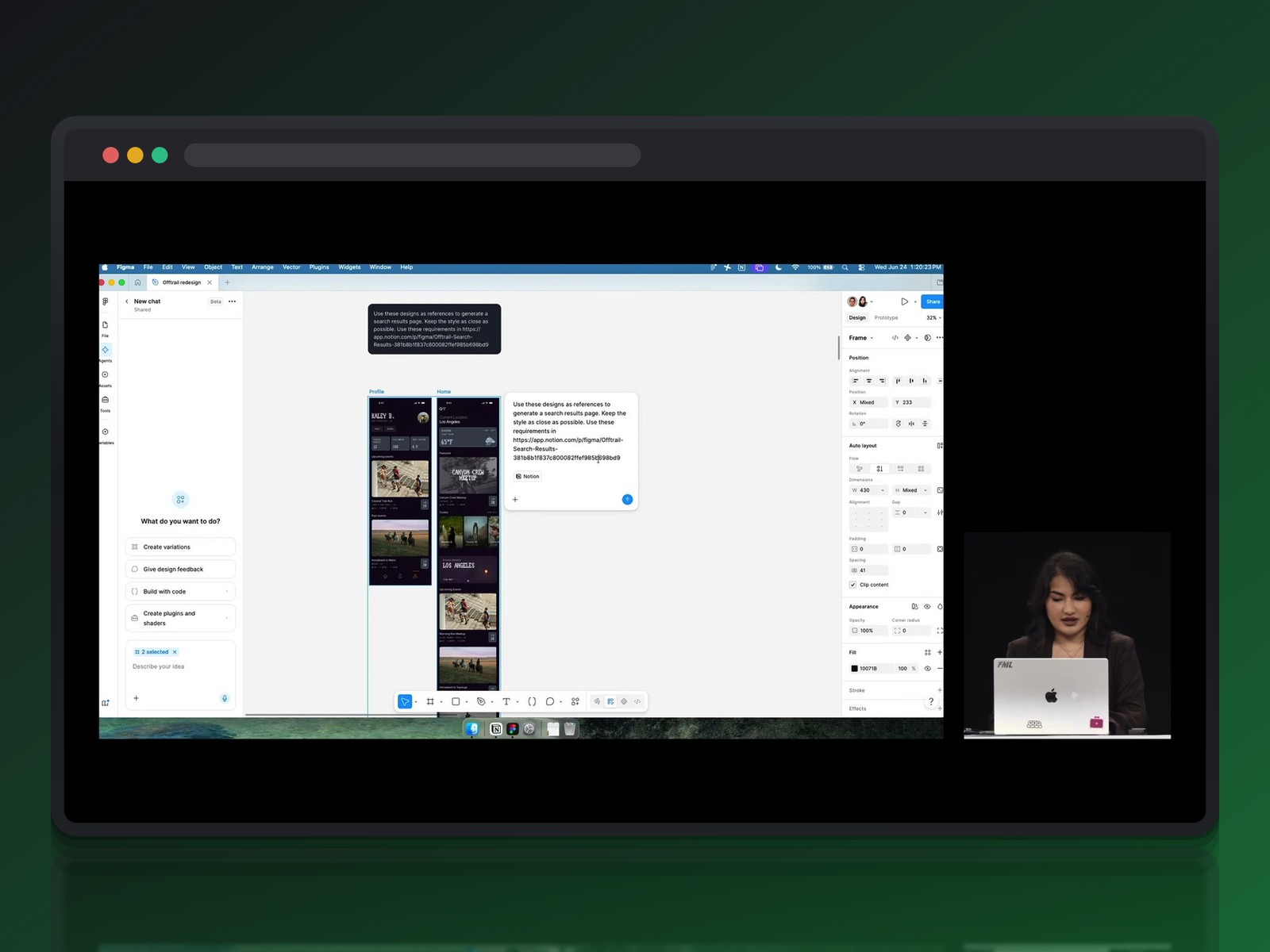
Built-in web search, without leaving Figma
The agent can also search the web in real time. For a weather app, it pulls the actual temperatures for San Francisco and drops them straight into the mockup — without ever breaking our creative flow.
Custom Skills: teaching the agent your own expertise
Custom Skills are simple Markdown files that encode our house conventions. The agent stops being generic: it learns our naming rules, our visual habits, our way of documenting things.
These skills are composable — a skill like Spec Up can itself call on a broader skill like Create Documentation. They're shared with an entire team in seconds, which lets a senior designer's expertise scale across the whole organization. Concrete payoff: the AI annotates typographic hierarchies and accessibility contrast on its own, with nothing overlooked.
What the agent can actually do, beyond the prompt
In a demo built around the hiking app Offtrails, the agent starts from a selection of existing elements to understand context — no magic generation, just contextual interpretation grounded in our own component libraries.
Remixing and exploring several directions in parallel
Parallel prompting lets us launch several tasks at once: updating content for a city, swapping profile photos, testing a dark mode. The designer becomes an art director steering several tracks at the same time.
We can also ask for constrained variations — changing the layout without touching fonts or colors — to test different structures without ever stepping outside the brand guidelines.
The agent goes beyond pure aesthetics too: importing a CSV file of heart-rate or elevation data populates a hiking-tracking page with real numbers. We stop designing for an idealized case and start designing for the unpredictable reality of actual users. Code layers follow the same logic: asking to turn a list into a grid reorganizes the components, and the result stays interactive, not just visual.
Cleaning up Auto Layout and replacing Lorem Ipsum
No more Lorem Ipsum hiding real readability problems: the agent replaces generic headlines with realistic content, matching visuals included. It can also apply Auto Layout to every nested frame in a selection with a single command — as long as our layers are named properly, since that's what it relies on to understand the hierarchy.
A critical reviewer: visual hierarchy and accessibility
Handed a sales page, the agent flagged a hero image that was too small, weak contrast on the size selectors, and a call-to-action button that carried too little visual weight. It can also summarize a team feedback session into a concrete action list — and respond directly to comments left on the canvas. A colleague asks to remove colored borders or enlarge buttons? The agent interprets the comment and applies the change, without looping back to us for every micro-adjustment.
- Tap targets under 44 pixels → mobile ergonomics alert
- Progress shown through color alone → a problem for low-vision users
- Vague comment in a meeting → reworded into an actionable canvas fix
MCP + Cursor: turning a Figma design into working code
Figma's MCP server opens a real bridge to code. Unlike Figma Make, which interprets a screenshot, MCP gives the AI direct access to the file itself — layers, variables, auto layouts.
The prep work that changes everything: Auto Layout and variables
The outcome depends entirely on upstream rigor. Every spacing value, every corner radius needs to be bound to a variable, not a free-floating number:
- 8-pixel gap → variable assigned
- 24-pixel padding → variable assigned
- corner radius → variable assigned
Connecting Cursor to the Dev Mode MCP server
In Figma Beta preferences, we turn on Enable dev mode MCP server. Then we paste the configuration Figma provides into Cursor's tools tab. All that's left is selecting our frame and talking to the agent (Claude 3.5 Sonnet in the demo) so it can read our variables, styles, and images directly.
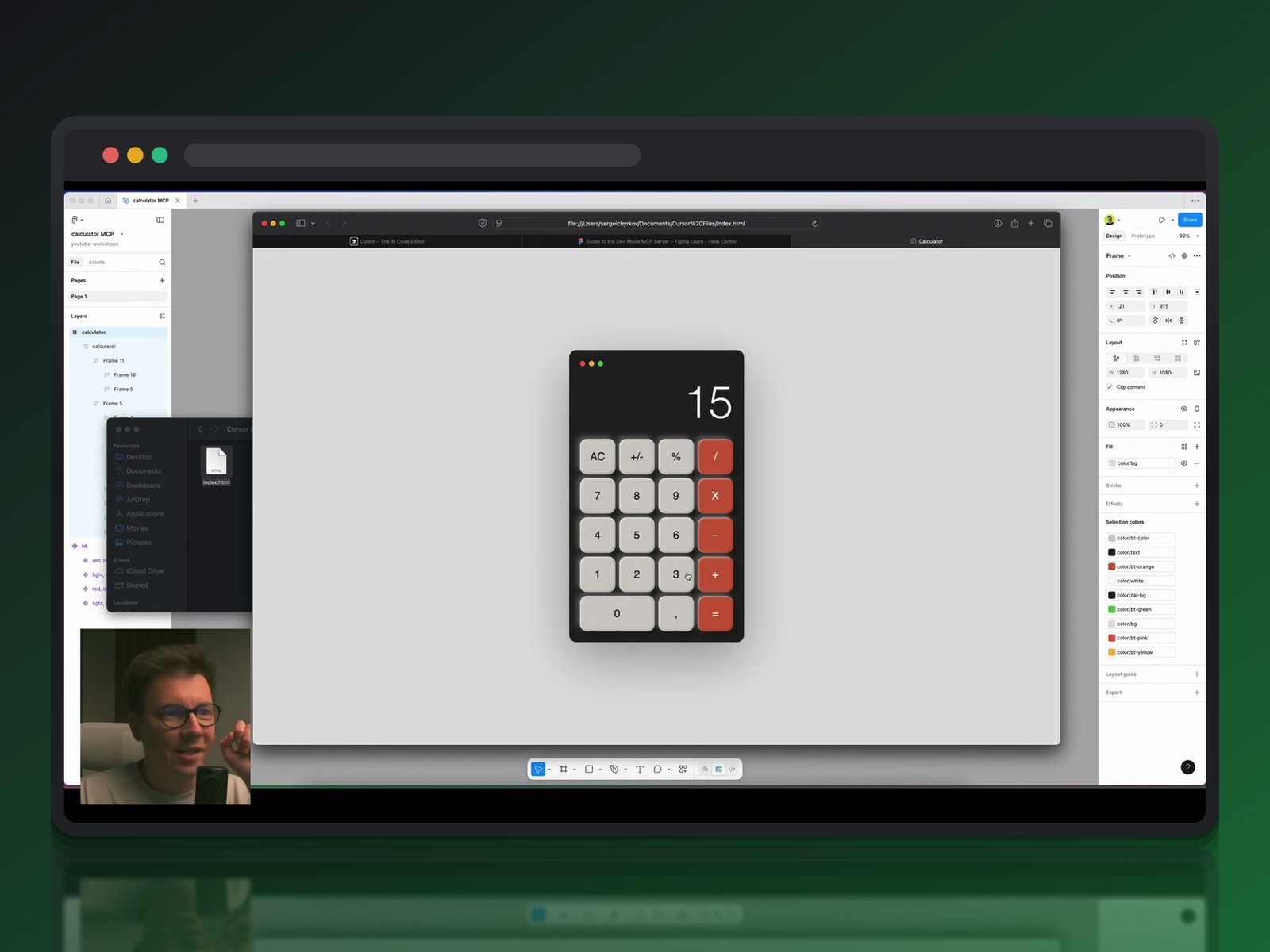
From pixel to code that really responds
On a test calculator, the AI generates index.html, style.css, and the JavaScript carrying the calculation logic. The result genuinely works: 10 + 5 shows 15, 10 × 3 shows 30.
The first pass isn't perfect — sometimes we need to fix button sizing or alignment with precise follow-up prompts. But the line between design and front-end is dissolving: we ship a working product, not just a mockup.
The limits: what stays in the designer's hands
Every designer defines "chore" differently: some love polishing pixels, others prefer systems architecture. The agent has to stay flexible, and quiet when we're not calling on it.
Figma also leans on its multiplayer DNA rather than silos: conversations with the agent are shared and visible to the whole team, including how a colleague phrased their prompt.
Conclusion: a collaborator, not a replacement
MCP connectors, Custom Skills, a bridge to code: these three building blocks sketch out an agent that does the dishes so we can focus on the art. Aesthetic judgment and understanding user needs remain deeply human.
What's left is learning to direct these new prompts — and deciding, project by project, how far to let the AI go in our own workshop.
Further reading
This synthesis article is based on the following videos:
- Figma Agent : comment l'intelligence artificielle transforme le flux de travail des designers professionnels
- Comment transformer vos designs Figma en code fonctionnel grâce au nouveau serveur MCP et Cursor
- L'arrivée des agents Figma : comment l'IA transforme le flux de travail des designers UI
Articles generated via Vidiome, then merged and enriched.