
Introduction: Figma Motion reshuffles the deck, but for whom?
Since Figma Motion was announced at Config 2026, one question has been circulating in design teams: should you uninstall Jitter, Rive, or your Lottie plugins?
We watched Figma's official deep-dive, a full tutorial, and — most tellingly — a head-to-head crash test against Rive to settle the question.
Verdict: Figma Motion replaces none of them. It redraws the boundaries — and this guide compares all four tools on the one question that actually matters: what happens to the animation once it's built?
Figma Motion in practice: what you can do without leaving the canvas
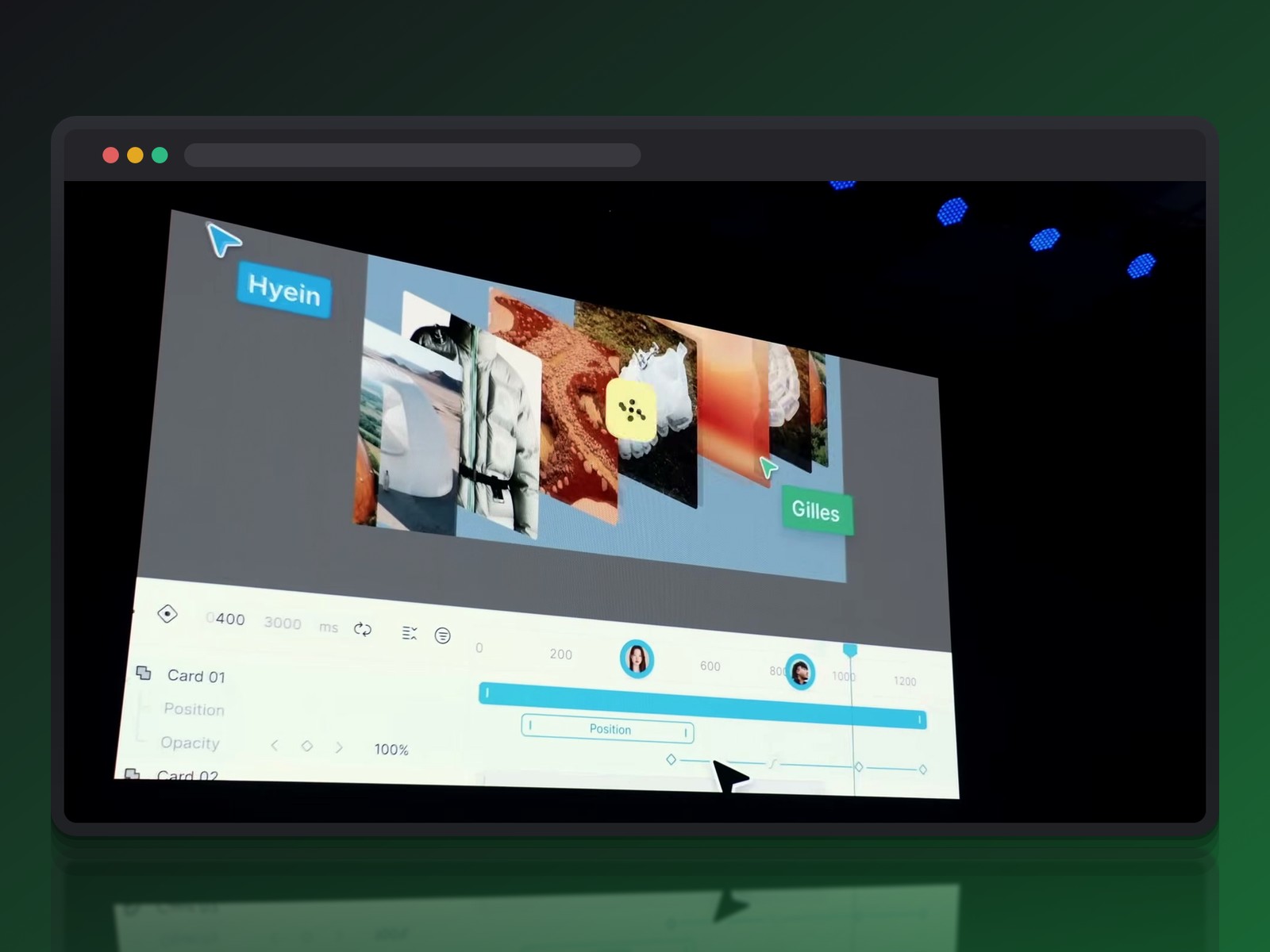
The idea is simple: a Motion tab appears at the bottom of the screen, a familiar timeline opens, and every animatable property shows a small diamond icon.
One single timeline, deliberately simple
We set a keyframe on position, another on opacity, and Figma interpolates between them. The Mo gizmo lets us draw trajectories straight on the canvas, no numeric value table required.
Each frame gets only one timeline. That's perfect for a micro-interaction or a screen transition, more limiting once several animations need to run independently in parallel.
Auto-key, easing, and the first pass of AI
The auto-key mode automatically records every canvas change as a keyframe — closer to stop-motion, where you nudge the object and let it tell its own story.
The easing presets (ease-in-out-back, elastic overshoot) pull animation out of linear stiffness. The Figma agent can already draft a first pass of keyframes from a plain sentence like "make these elements fly in from the sides".
The gap shows up immediately on something as simple as a button appearing: a plain translation feels flat, while an ease-in-out-back curve gives it a light elastic bounce that catches the eye. You can also vary scale mid-course — an object starts at 100%, dips to 50% halfway through, then returns to 100% at the end — for a sense of depth a straight translation never delivers.
What the September 2026 update added
Figma Motion has been in open beta since September 30, 2026, and that update filled several gaps noted at launch:
- Lottie and dotLottie export → native, for supported animations.
- Audio → drop a sound file on the timeline, trim it and sync it to keyframes; it exports with the animation as MP4 and WebM.
- Animation styles → easing, duration and variable-backed properties save as a reusable style, publishable to libraries and applied by the Figma agent or by coding agents via MCP.
- Text animation → by character, word or line, and the text stays editable.
Against Rive: where design stops and interactivity begins
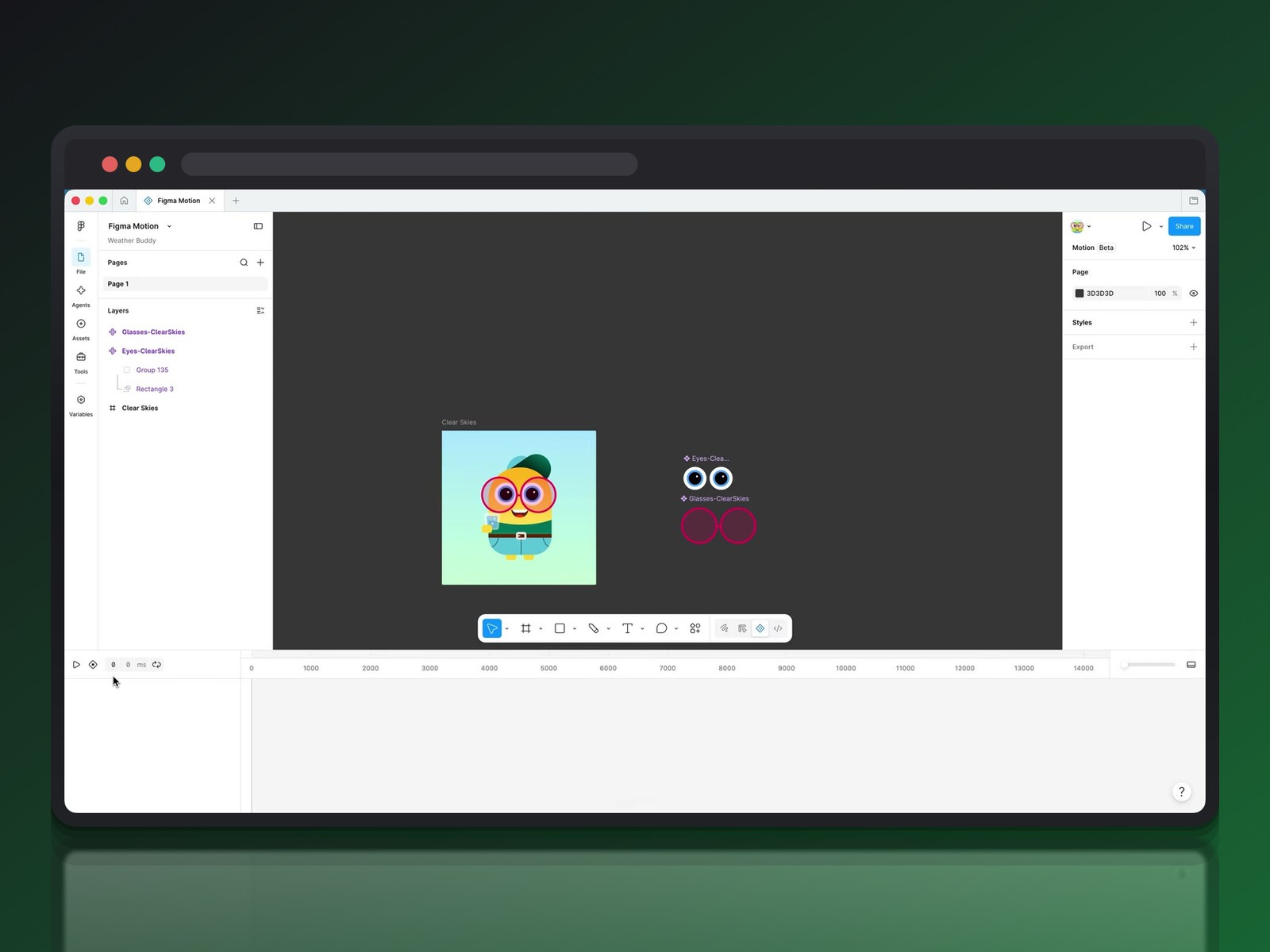
To settle the debate, one tester rebuilt the same project — the Weather Buddy weather app — in both Figma Motion and Rive. The technical verdict is clear-cut.
A single timeline versus a state machine
Rive separates the X and Y axes natively, and runs several independent animations in parallel. Everything is orchestrated by a State Machine that reacts to live data.
Figma Motion combines X and Y by default — you have to enable separate dimensions to split them. It also stacks everything on a single timeline: the result feels closer to an enhanced Lottie format than a true interactivity engine.
One technical detail says it all: a simple reflection effect on a pair of glasses requires duplicating the group just to build a mask, while Rive handles that logic natively. A sign that Figma Motion is still built for the artboard, not yet for the interactive scene.
One AI generates keyframes, the other generates code
Ask Figma Motion's AI for a simple eye blink: it drops in keyframes without reorganizing the timeline around them. Functional, if a bit messy.
Rive's AI, on the other hand, writes an actual script. For an animated snow effect, it generates code that drives hundreds of particles. The payoff: set the temperature to 105° → the interface updates instantly through data binding.
The tester's conclusion: Figma Motion is the easy on-ramp to motion, while Rive remains the tool for teams turning a design into an interactive product — see our Rive vs Lottie comparison for a deeper dive.
Against Jitter: browser speed versus native integration
Jitter plays a different card entirely: everything happens in the browser, no Figma file required. Import a design, drop in animations from a preset library, and export to MP4 or GIF within minutes.
It's the fastest option for lightweight motion marketing — a product mockup, a social post, a client demo — whenever the animation never needs to travel back into the source design file.
Figma Motion keeps the opposite advantage: staying inside the same file as your components and variables, with no export-then-reimport loop on every iteration.
The typical workflow: design the interface in Figma, open it in Jitter, then drag each layer onto the timeline to assign an entrance, an exit, or a loop. No After-Effects-style learning curve — which is exactly what made the tool popular with marketing teams.
Against Lottie: lightweight export for web and mobile
Lottie isn't an editor — it's a format (JSON/dotLottie) that developers drop straight into an iOS app, an Android app, or a website, with no heavy video file to load.
Native export since September 2026
Figma Motion now exports natively to Lottie. Since the September 30, 2026 update, a supported animation exports as a Lottie or dotLottie file, no plugin needed. Figma hasn't published the list of unsupported features yet, so check the exported file before shipping it.
The official LottieFiles plugin remains an alternative. It converts Motion keyframes directly, but its own documentation notes that some behaviors don't fully match Motion yet.
Why a Lottie file weighs so little
The format traces back to the Bodymovin plugin for After Effects: it encodes an animated vector as JSON, with no pixels or video frames to decode. The payoff is a tiny file size next to an MP4, a crisp render at any resolution, and playback you can control in code (speed, pause, color) once it ships inside the app.
The ecosystem's unofficial tagline sums up the split rather well: Figma Motion designs it, Lottie ships it.
The real decision criteria: what will this animation actually do?
Before picking a tool, one question matters more than any other: where will this animation live? Does it need to react to anything beyond a simple video player?
- Micro-interaction or screen transition, staying inside the design file → Figma Motion
- Interface that reacts to live data or user input (game, app, dashboard) → Rive
- Marketing video or GIF to produce fast, with no dependency on the design file → Jitter
- Animation shipped to production on web/mobile, lightweight, no video player → Lottie
Plenty of teams end up combining two tools: Figma Motion to spec out the intent, Rive or Lottie to execute it in production.
Conclusion: four tools, one shifting boundary
Figma Motion doesn't kill any of the other three. It just shifts the boundary: what used to require a round trip to a third-party tool is now handled inside the Figma file, for the simple cases.
For everything else (data-driven interactivity, fast video production), Rive and Jitter keep a lead that Config 2026 didn't close. Lottie, for its part, remains the delivery format, and Figma Motion can now produce it.
Further reading
This synthesis article is based on the following videos:
- Figma Motion et IA : comment le mouvement transforme le futur du design d'interface
- Maîtriser Figma Motion : du keyframing à l'IA pour révolutionner vos animations d'interface d'utilisateur
- Figma Motion face à Rive : quel outil choisir pour vos animations d'interface interactives
Articles generated via Vidiome, then merged and enriched.