Introduction
When creating and documenting design systems, managing colors is one of the most recurring… and most time-consuming tasks. Between variables, styles and hexadecimal codes, it is common to waste time juggling selections, copy-pasting and detaching styles. This observation is what gave rise to Copy Color Value, a minimalist Figma plugin designed to meet a simple need: to quickly copy and use a layer's color values in all their forms.
A challenge well known to designers
The headache of documenting colors
When redesigning a visual identity or setting up a design system, it is essential to document every color used with precision. This often involves creating components that illustrate the colors' hexadecimal codes, their naming, and their classification (primitives, semantics, etc.).
Yet in Figma, simply retrieving the hexadecimal value of a color tied to a style or a variable is far from smooth. You have to detach the style, copy the code, reapply it… then start over for each color. A tedious process, especially when working with a rich palette (e.g. Tailwind) or a complete set of semantic colors.
A simple need, but an unmet one
Many Figma plugins exist to explore styles or generate palettes, but few address this precise need: directly copying a color's value and, if possible, the name of the associated style or variable. It is this gap that inspired the creation of Copy Color Value.
Copy Color Value: simplicity and efficiency
An interface designed like a swatch panel
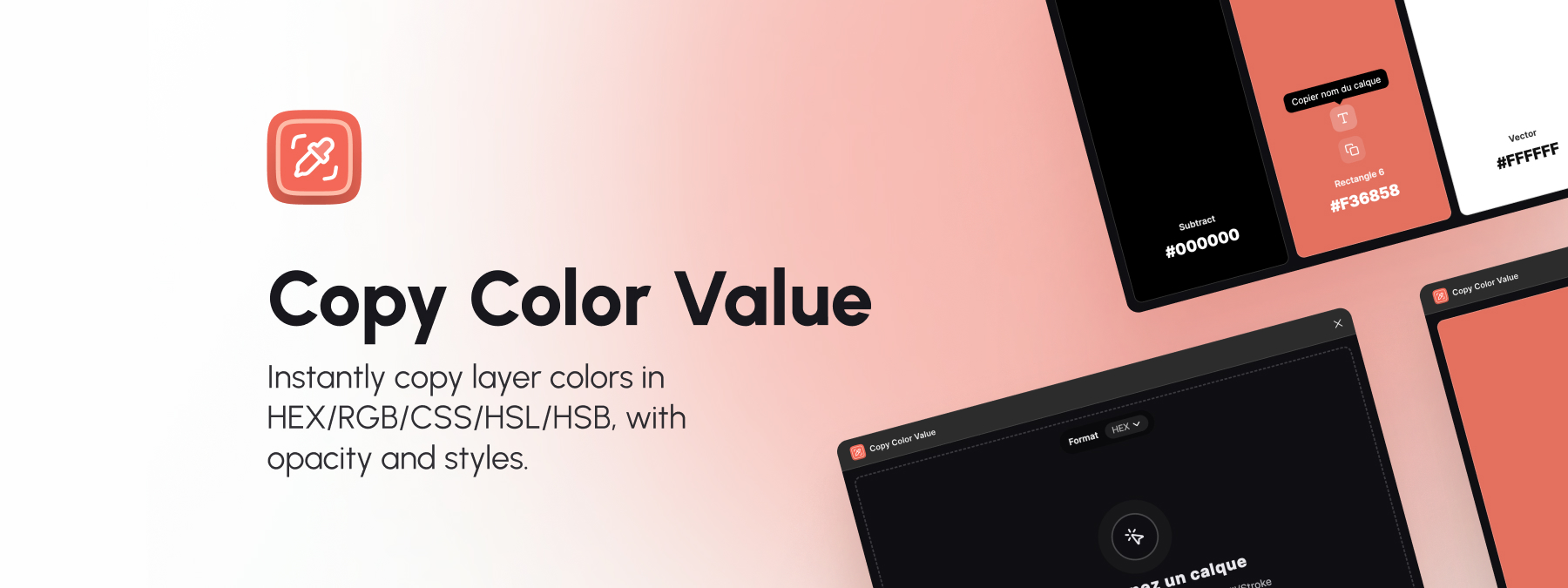
The idea behind the plugin is simple: when you select a layer, the plugin detects every color used (whether applied directly, through a style or a variable). These colors appear in a minimalist window, designed like a small swatch panel.
If there is only one color, it fills the entire height.
If there are several (for example a gradient or multiple selected layers), they spread across the window, up to 3 per row, with the ability to scroll if needed.
Copy and convert values
For each displayed color, the user can:
- Copy the hexadecimal value
- Copy the name of the associated style or variable
- Copy the layer name
- Change the output format: Hex, RGB, HSL, HSB or CSS
This flexibility lets you adapt the documentation to the context (handoff to front-end developers, formatting a design system, or simple internal use).
Concrete time savings
Example: documenting Tailwind
On a Tailwind-based project with an extensive palette, Copy Color Value lets you, in our experience, list and document in a few clicks all the colors used on text and other elements. No more manual detaching/reapplying: the values are immediately accessible.
A building block for a whole ecosystem of design tools
The plugin can also be combined with other Figma tools: for example, selecting all the text in a file through a dedicated plugin, then using Copy Color Value to directly extract the applied colors. In a few seconds, you get an exhaustive view of the variables used in the project.
Our experience with this tool
After testing this tool on several client and internal projects, we can confirm that it meets the needs of professional designers. Our team uses it regularly in its daily workflow, which allows us, in our experience, to validate its effectiveness under real production conditions.
Points tested in detail:
- Performance on large files (500+ frames)
- Compatibility with complex design systems
- Stability during intensive use
- Integration into a team workflow
Points to watch (tested in real conditions)
In the interest of transparency, here are the limitations we identified during our tests:
- Processing time that may be longer on very large files
- Requires a stable internet connection for certain features
- Learning curve for beginner users
Conclusion
Copy Color Value was born from a very concrete need encountered in redesign and design system projects: documenting colors faster and more efficiently. Minimalist, intuitive and focused on the essentials, it turns a repetitive and tedious task into a smooth, instant action.
It is also the perfect example of the philosophy that guides the use of plugins in Figma: invest a little time to solve a recurring problem, and save time on every project afterward.