Introduction
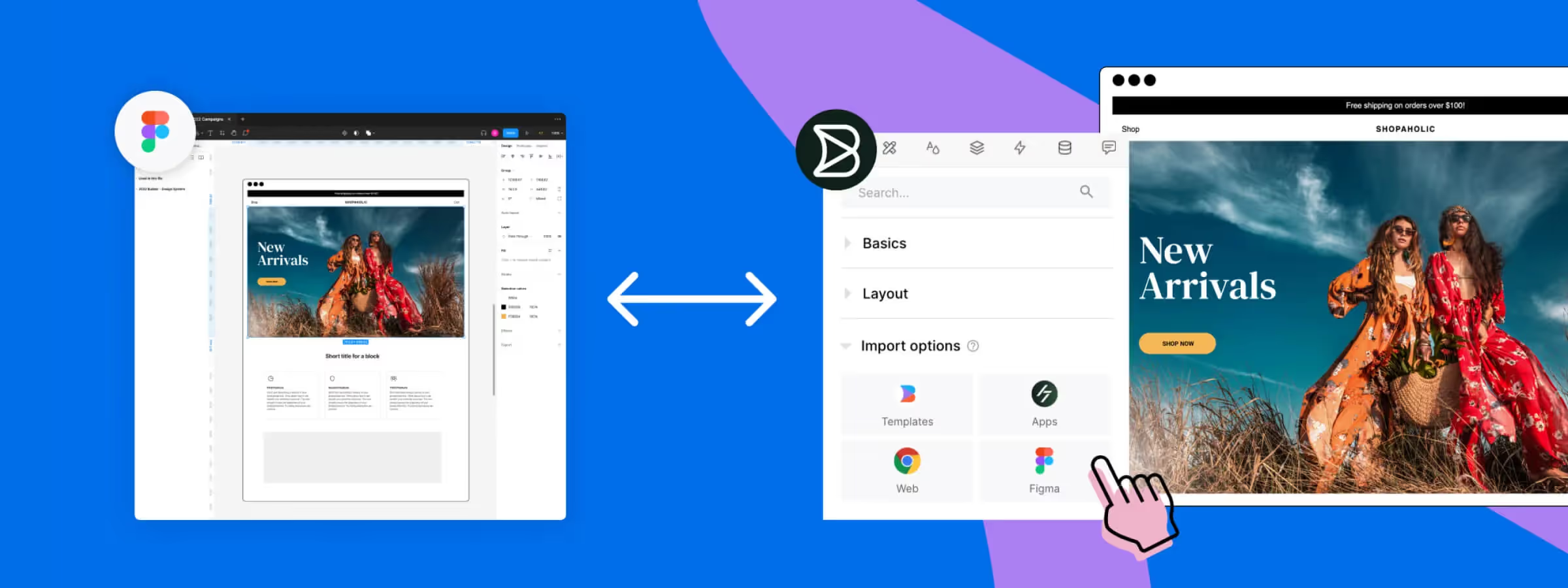
Designing user interfaces often requires drawing inspiration from existing websites or converting web pages into interactive mockups. However, this process can be tedious and time-consuming. This is where the Builder.io plugin for Figma comes in, offering a convenient solution for directly importing web pages into Figma and transforming them into interactive mockups. Within the field of digital design, tools and plugins offer a wide range of possibilities to facilitate our work.
Among these innovative solutions, the Builder.io plugin for Figma stands out by offering a combination of powerful features: design export to code, content generation through artificial intelligence (AI), and direct web page import into Figma. In this article, we will focus on this last feature, which complements the Html.to.Design plugin known for its limitation of 12 imports per month. Discover how the Builder.io plugin allows you to import web pages without restrictions and take full advantage of Figma's features for your design projects.
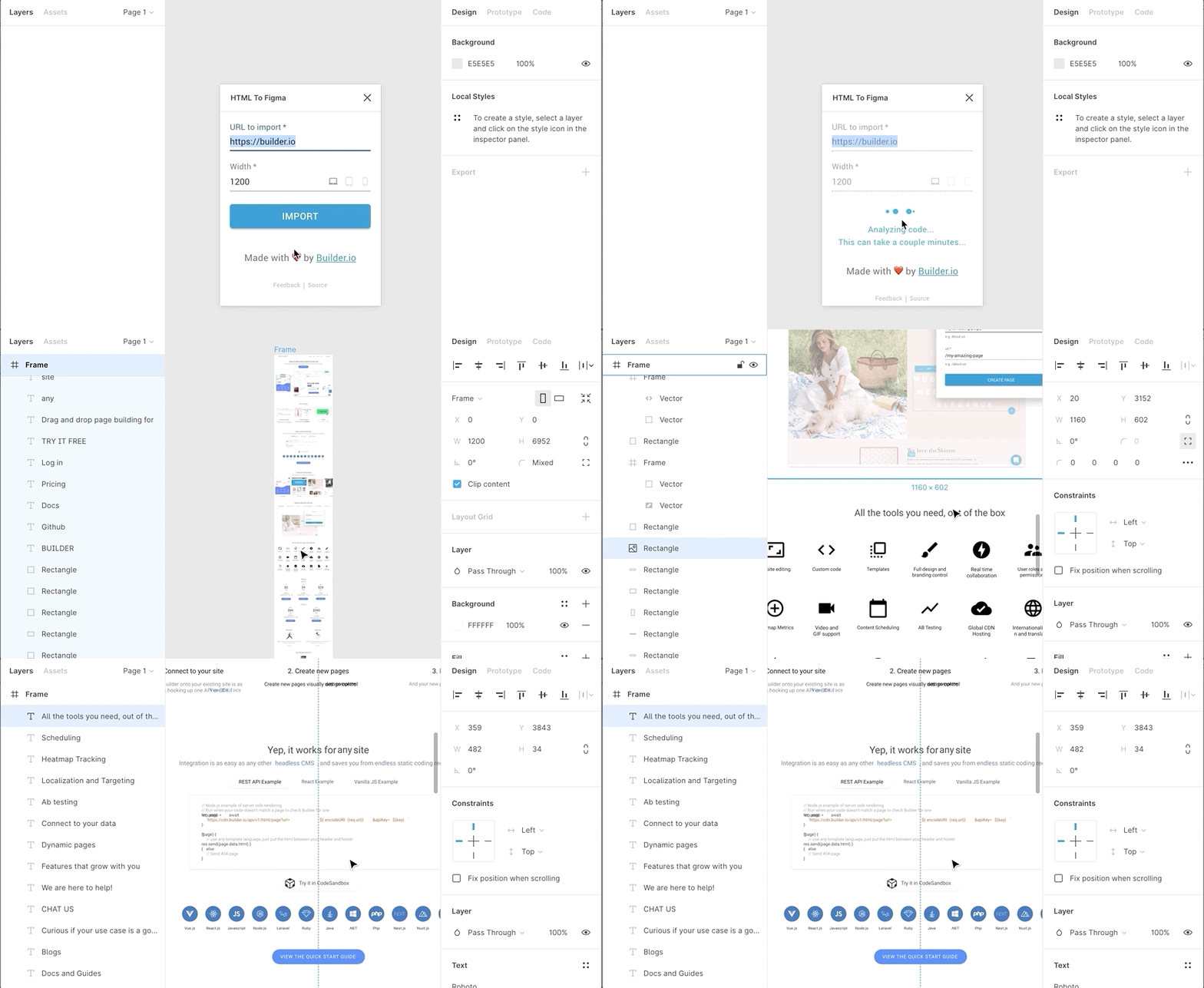
How to use it
URL TO IMPORT
This feature allows users to import specific web pages into Figma using the corresponding URL. When you activate this feature, you can simply copy and paste the URL of the web page you wish to import, and the Builder.io plugin will automatically extract the page content and transform it into a Figma mockup. This allows you, according to our experience, to work directly with actual elements from web pages in your design project, making it easier to create mockups based on existing websites.
VIEWPORT WIDTH
The "Viewport Width" feature of the Builder.io plugin allows you, according to our experience, to specify the viewport width when importing a web page into Figma. This feature gives you precise control over how the web page is displayed in your mockup.
With the desktop, tablet and mobile icons available, you can choose from predefined widths for the viewport. For example, you can select a width of 1200px to represent desktop screen display, 900px to simulate a tablet, or 400px to represent mobile display.
Adjusting the viewport width allows you, according to our experience, to simulate different devices or screen resolutions, which is particularly useful when designing adaptive or responsive interfaces. You can thus visualize and adjust your mockup based on different screen sizes, ensuring that your design adapts perfectly to each device.
FRAMES
The "Frames" feature of the Builder.io plugin makes it easier to import web pages into Figma. By default, all elements are grouped in a single frame, preserving the structure of the web page. However, by checking a box during import, it is possible to create individual frames for each element, except for SVG elements which are grouped separately.
The generated frames offer several advantages. They allow you to easily modify each imported element by isolating them in individual frames. This makes it easier to select, modify and precisely customize each element.
Additionally, using frames can speed up the application of auto layout, a powerful Figma feature for creating dynamic and responsive layouts. By applying auto layout to individual frames, it becomes easier to achieve a fluid and responsive layout for your mockup.
CHROME EXTENSION
The Chrome extension of the Builder.io plugin offers a page capture feature. By clicking the "Capture the page" button, you can download the visual rendering of a web page in JSON format. To use this rendering in Figma, simply upload the JSON file via the Builder.io plugin in Figma. Once the file is imported, the plugin automatically generates the page rendering as a frame in Figma.
It is important to note that the web page rendering obtained by using the Chrome extension and downloading the JSON file will be identical to that obtained by going directly through the Builder.io plugin in Figma. This ensures visual consistency and rendering fidelity, regardless of which import method is used.
Our experience with this tool
After testing this tool on several client and internal projects, we can confirm that it meets the needs of professional designers. Our team uses it regularly in our daily workflow, which allows us, according to our experience, to validate its effectiveness in real production conditions.
Points tested in detail:
- Performance on large files (500+ frames)
- Compatibility with complex design systems
- Stability during intensive use
- Integration into a team workflow
Conclusion
In conclusion, the Builder.io plugin for Figma offers a practical solution for importing web pages into Figma and transforming them into editable mockups. Unlike Html.to.Design which imposes monthly conversion limits with its paid plan, Builder.io allows you, according to our experience, to convert web pages to Figma files without restrictions. While the plugin's features are not as advanced as those of Html.to.Design, such as using frames in auto layout, Builder.io remains an effective and free alternative for converting web pages to Figma mockups.
With Builder.io, you can easily capture and import the visual rendering of web pages while preserving their original structure and styles. Whether you need to create mockups, draw inspiration from existing designs or use actual components, Builder.io supports you in your design process in Figma, without the monthly limitations imposed by other tools. Enjoy the freedom to convert as many web pages as you wish and fully leverage the possibilities offered by Figma for your design projects.