Introduction
User interface design is a complex process that requires careful attention to detail. Among these details, style management is crucial for maintaining visual consistency throughout a project. However, creating styles in bulk can be time-consuming, and it would be simpler and faster to simply name each styled layer and generate everything at once, rather than going through Figma's interface which can be tedious.
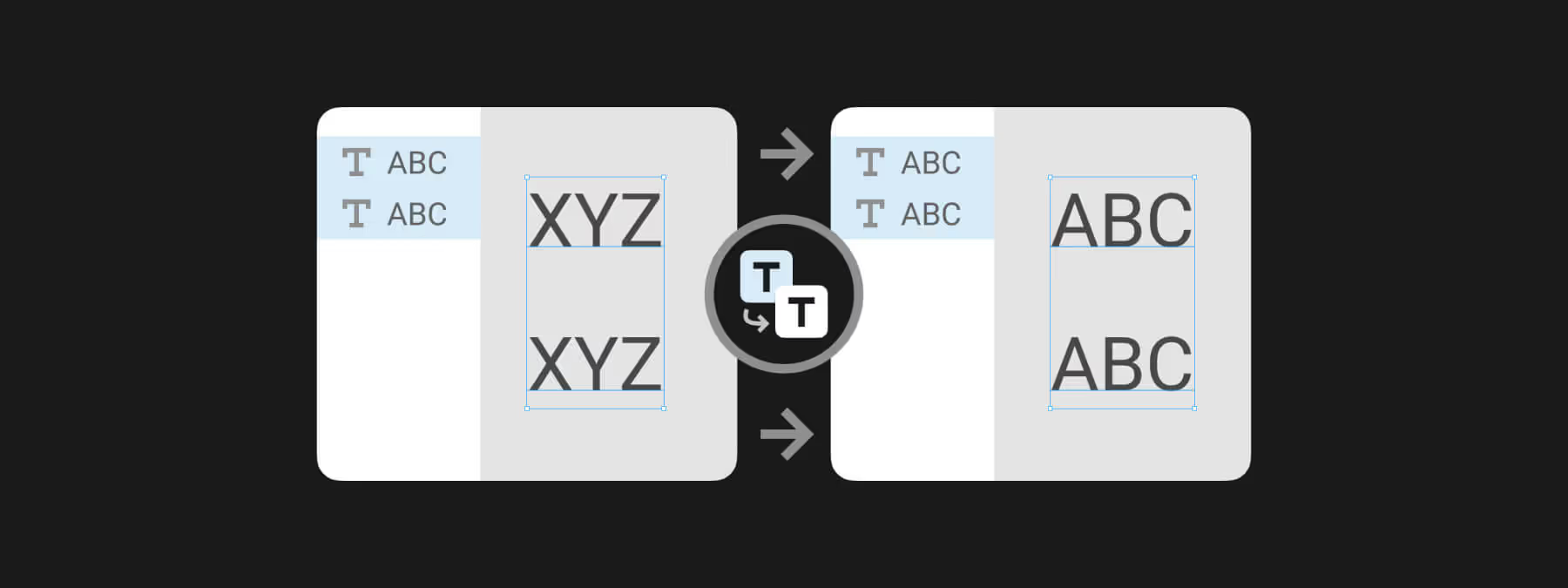
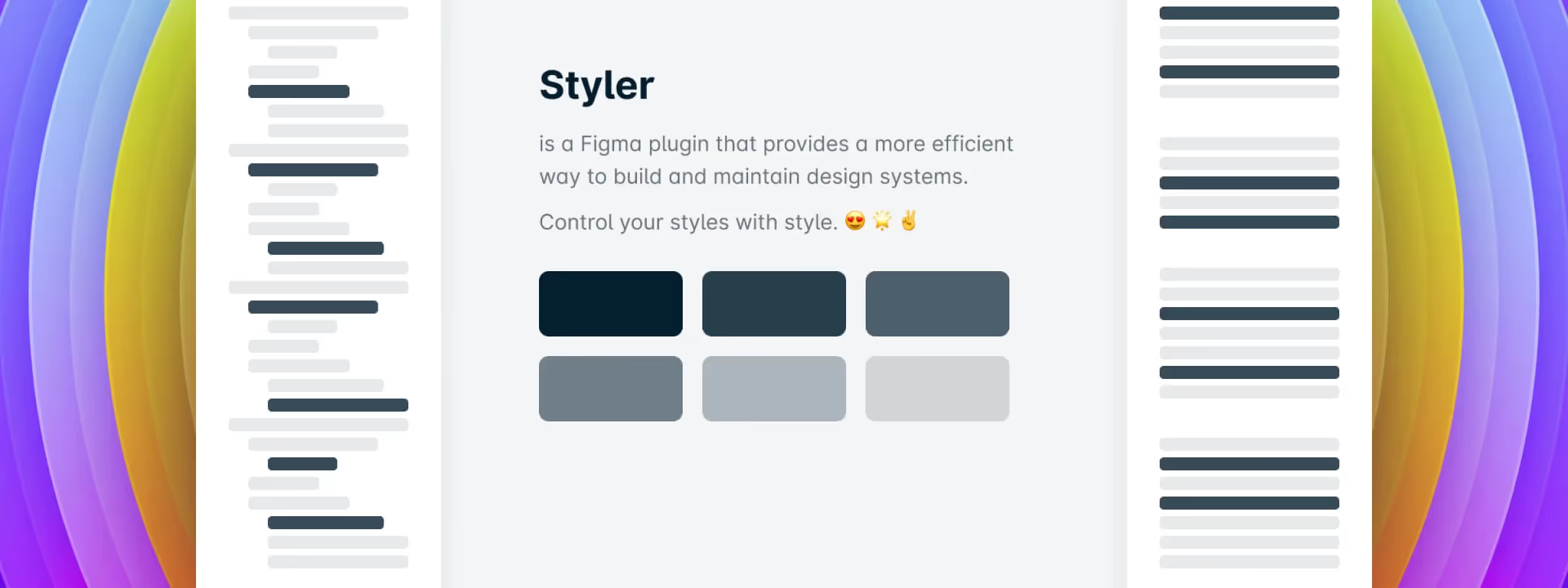
This is where the "Styler" plugin comes in, which allows, based on our experience, you to generate styles based on layer names in Figma. The major advantage of this plugin is the ability to change styles easily in the same way. Combined with the features of the Rename It plugin, which notably allows you to set the style name as the layer name, updating styles or their names becomes even simpler and faster.
How to Use It
EXTRACT STYLES
This feature allows you to quickly extract styles from existing design elements in your Figma project. The extracted styles are displayed in size order, which is very convenient for quick and efficient use. Additionally, if you use the auto-layout feature, extracting styles can be even faster and easier for use in other projects or to create a style guide.
GENERATE STYLES
This allows, based on our experience, you to create styles based on layer names in your Figma design. This feature is useful for colors, fonts, font sizes, and shadow effects, and can be used to quickly create consistent styles for your design elements. When using this feature, it is important to name layers in a consistent and descriptive manner. For example, if you want to create a style for the background color of a button, you can name the corresponding layer "Button/Background".
In this way, when you use the "Generate Styles" feature, the plugin will create a new style based on the "Button/Background" name. Once you have created a style using this feature, it is easy to apply it to other design elements by using the "Apply Styles" feature. You can also organize your styles using style hierarchies by using a slash ("/") in your layer name, as seen previously.
APPLY STYLES
This feature allows you to apply existing styles to selected elements in your Figma design based on layer names. This feature works for colors, text, and effects. Thus, if you have named your layers consistently with your styles, you can easily apply these styles to your corresponding layers using this feature.
In other words, the "Apply Styles" feature is the inverse behavior of the style generation feature. While style generation creates styles based on layer names, the "Apply Styles" feature applies existing styles to layers also based on their names.
DETACH STYLES
This allows users to detach styles from one or more selected elements at once. This feature is particularly useful if you have multiple elements with different styles and want to handle them in bulk. It is important to note that if you use this feature to detach a single style or single layer, the plugin may not provide significantly more advantages compared to the basic functions available in Figma. However, if you need to handle multiple elements, the "Detach Styles" feature can save you a lot of time by avoiding the need to detach styles one by one.
REMOVE STYLES
This feature allows, based on our experience, you to quickly remove a text style, color style, effect, or grid from a selected element in your Figma project. One of the advantages of this feature is that removal is visual, which makes it easier to identify which styles need to be removed. Additionally, it is possible to target all styles at once or individually using the options "By Fill Type", "By Stroke Type", "By Text Type", "By Effect Type", and "By Grid Type". This feature is very useful for maintaining style consistency throughout your project and for quickly removing unused or redundant styles.
CUSTOMIZE PLUGIN
This allows, based on our experience, you to customize the plugin according to your specific needs. You can choose the duration of notifications so you don't miss important information, and set the order of style generation to suit your preferences. Additionally, you can display the name of the last style in the description for better identification.
The plugin also offers some experimental features for advanced users. You can adjust the number of columns and rows generated when using the "Extract Styles" feature, which can be very handy for large projects. Finally, you can choose to save your current settings or restore default values.
Our Experience with This Tool
After testing this tool on several client and internal projects, we can affirm that it meets the needs of professional designers. Our team uses it regularly in their daily workflow, which allows us, based on our experience, to validate its effectiveness in real production conditions.
Detailed tested points:
- Performance on large files (500+ frames)
- Compatibility with complex design systems
- Stability during intensive use
- Integration into team workflow
Points of Attention (tested in real conditions)
In the interest of transparency, here are the limitations we identified during our tests:
- Processing time can be extended on very large files
- Requires a stable internet connection for certain features
- Learning curve for beginner users
Conclusion
In summary, the "Styler" plugin is a practical tool for all designers working on Figma who want to save time and improve their productivity. Thanks to the style generation feature based on layer names, it is easy to create consistent styles for all your design elements. By also using the "Customize Plugin" feature, you can customize the tool to your specific needs, for example by choosing the duration of notifications or the order of style generation.
One of the major advantages of "Styler" is its combination with the Rename It plugin, which notably allows you to quickly update layer names based on applied styles. Ultimately, "Styler" is an excellent tool for all designers looking to simplify their workflow and save time. Using this tool, you can easily create consistent styles for all your design elements while customizing the tool to meet your specific needs.