Introduction
Once a design is finished, you often wish you could enhance it with a real-world setting. To achieve this, we frequently use mockups. Using Photoshop to work with a mockup may seem absurd, but it gives you access to plenty of free or affordable mockups to easily stage your creation.
With the rise of tools such as Sketch or Figma, using Photoshop to work with a mockup no longer seems to be the best software choice. Even though the Figma Angle plugin allows for fairly advanced staging with a range of features, the Perspective Toolkit plugin is no slouch when it comes to rendering.
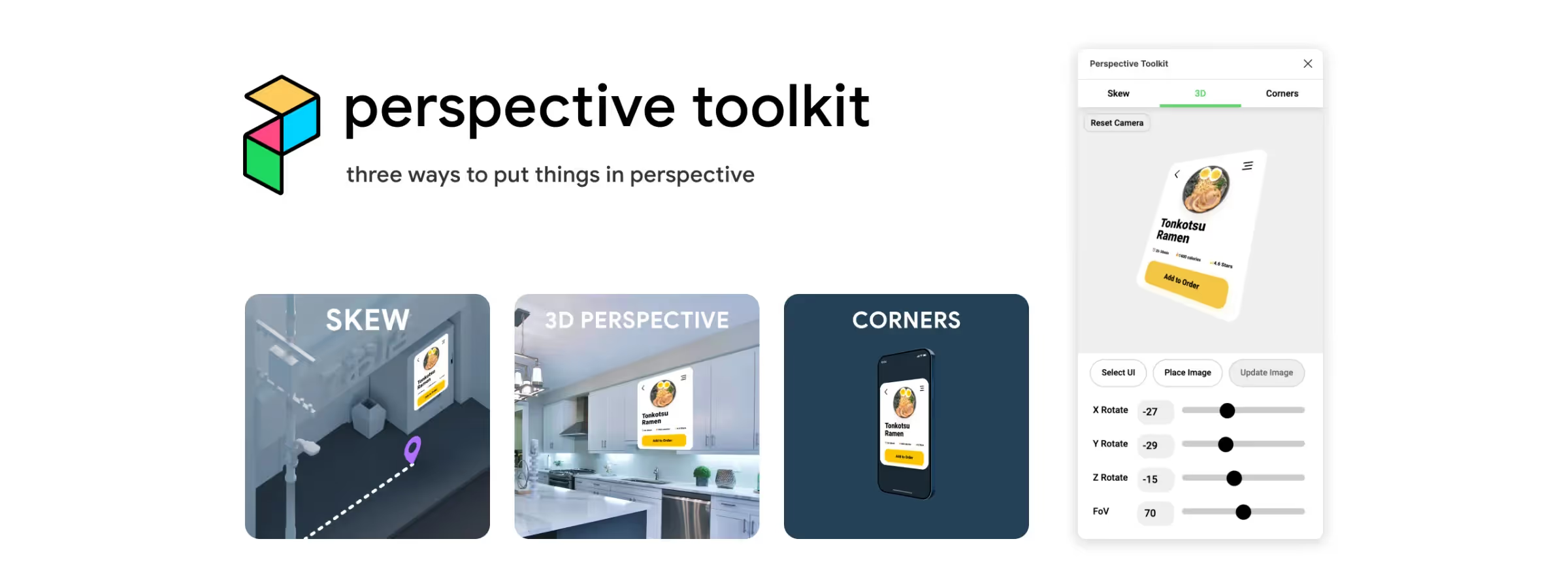
The Perspective Toolkit plugin adds a toolbox that lets you put your designs into perspective directly within Figma. This toolbox allows designers to distort 2D shapes and make them appear in 3D. The plugin is overall fairly comprehensive and should meet most designers' expectations regarding the use or creation of a custom mockup.
How to use it
SKEW TAB
In our experience, the Skew tab lets you distort a 2D shape by adding perspective to a single dimension. This feature can be useful for creating tilt effects to give your designs some depth.
3D TAB
In our experience, the 3D tab lets you distort a shape in 3D by adding perspective to two dimensions. This feature can be useful for creating 3D product mockups or for adding depth to website or app designs.
CORNERS TAB
In our experience, the Corners tab lets you distort the appearance of a background image on a shape by adding perspective. To use this feature, select a four-point shape, then click "Fit Selected Quad" to distort the image of the selected element according to the new shape. Don't forget to flatten the shape if the feature isn't available.
Which Tab Should You Use?
The three tabs solve different problems, and picking the right one saves time:
- Skew — a fast, non-destructive tilt on a single axis. Best for a quick angled screenshot without setting up a full 3D scene.
- 3D — full perspective with field-of-view control, so a flat screen design reads as a real device seen from an angle.
- Corners — fits your design onto an existing four-point shape, which is what you'll use to drop a screenshot into a photographed device mockup.
Where this fits in a real project
In practice, the plugin shows up most often at the very end of a project: app store screenshots, case study visuals for a portfolio, or a Dribbble/Behance shot that needs to look like it lives in the real world rather than as a flat rectangle.
Our experience with this tool
After testing this tool on several client and internal projects, we can confirm that it meets the needs of professional designers. Our team uses it regularly in its daily workflow, which allows us, in our experience, to validate its effectiveness in real production conditions.
Points tested in detail:
- Performance on large files (500+ frames)
- Compatibility with complex design systems
- Stability during intensive use
- Integration into a team workflow
Points to watch (tested in real conditions)
In the interest of transparency, here are the limitations we identified during our tests:
- Processing time can be longer on very large files
- Requires a stable internet connection for certain features
- Learning curve for beginner users
Conclusion
The Perspective Toolkit plugin can be compared to the Figma Angle plugin, although these two tools have different features and uses. Both plugins can be useful for designers who want to stage their designs. In any case, the Perspective Toolkit plugin can meet your expectations when it comes to creating custom mockups tailored to your needs.
To conclude, Perspective Toolkit is a useful plugin for designers who use Figma to create interfaces. It lets you easily add depth and perspective to your designs to stage them. If you want to impress your clients or enhance your creations to publish them on platforms like Behance or Dribbble, this is a plugin not to be overlooked.