Introduction
Designers worldwide know the challenge of creating visually appealing and functional mockups. A key part of this process is integrating icons that match your desired style. The "Material Design Icon" plugin for Figma proves to be the ideal tool for Google design enthusiasts.
In this article, we'll explore in detail the features of this innovative plugin, highlighting how it can optimize your workflow by easily integrating Material Design icons into your Figma creations.
How to Use It
PLUGIN INTERFACE
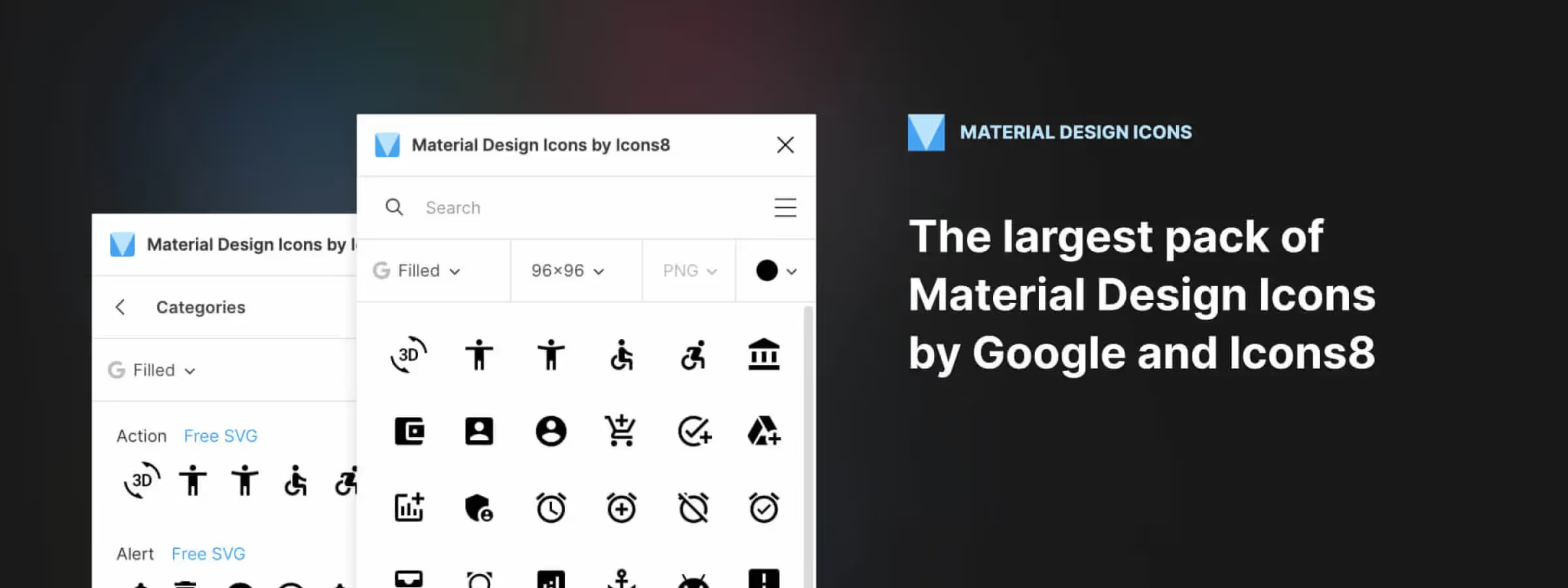
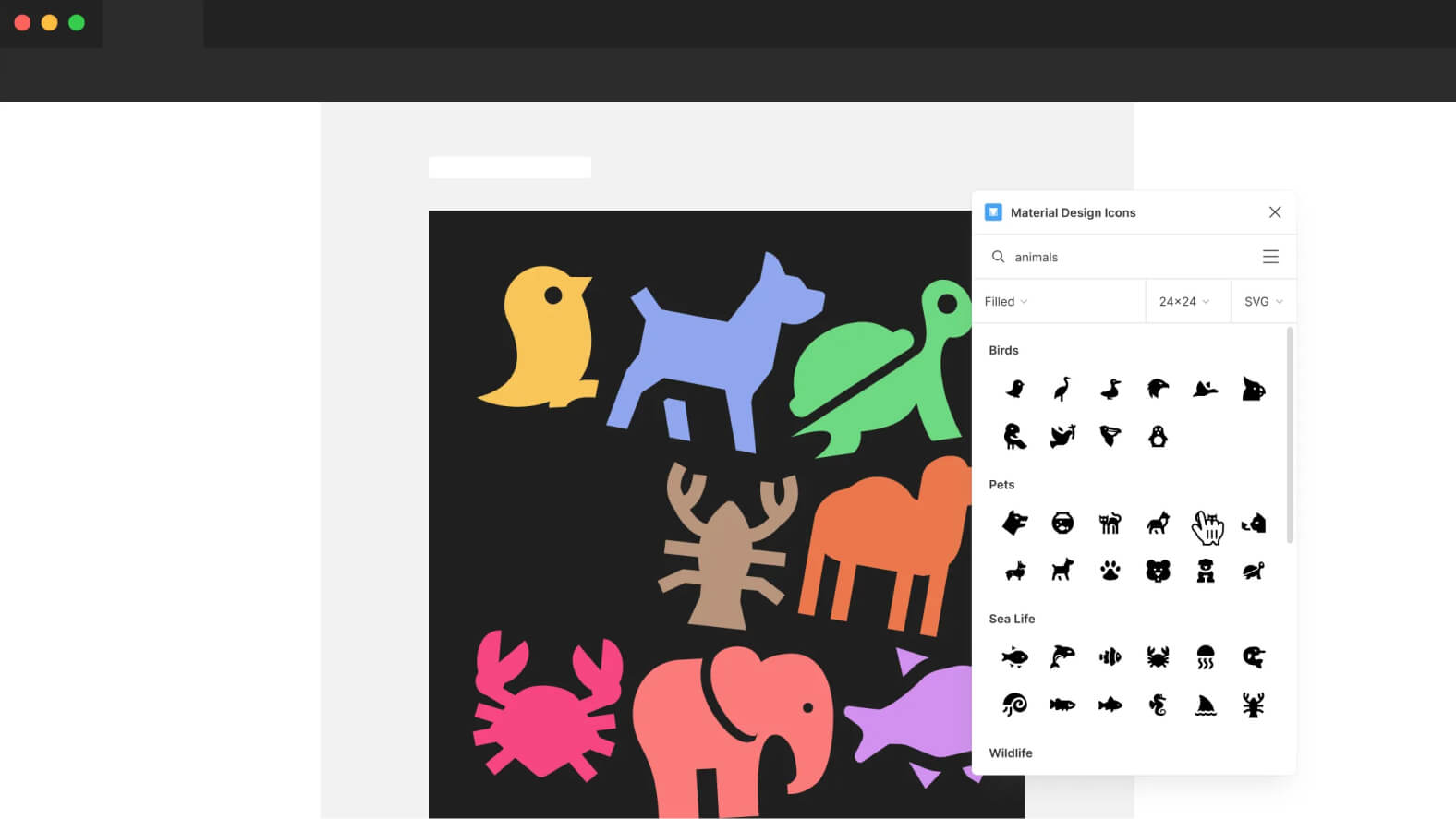
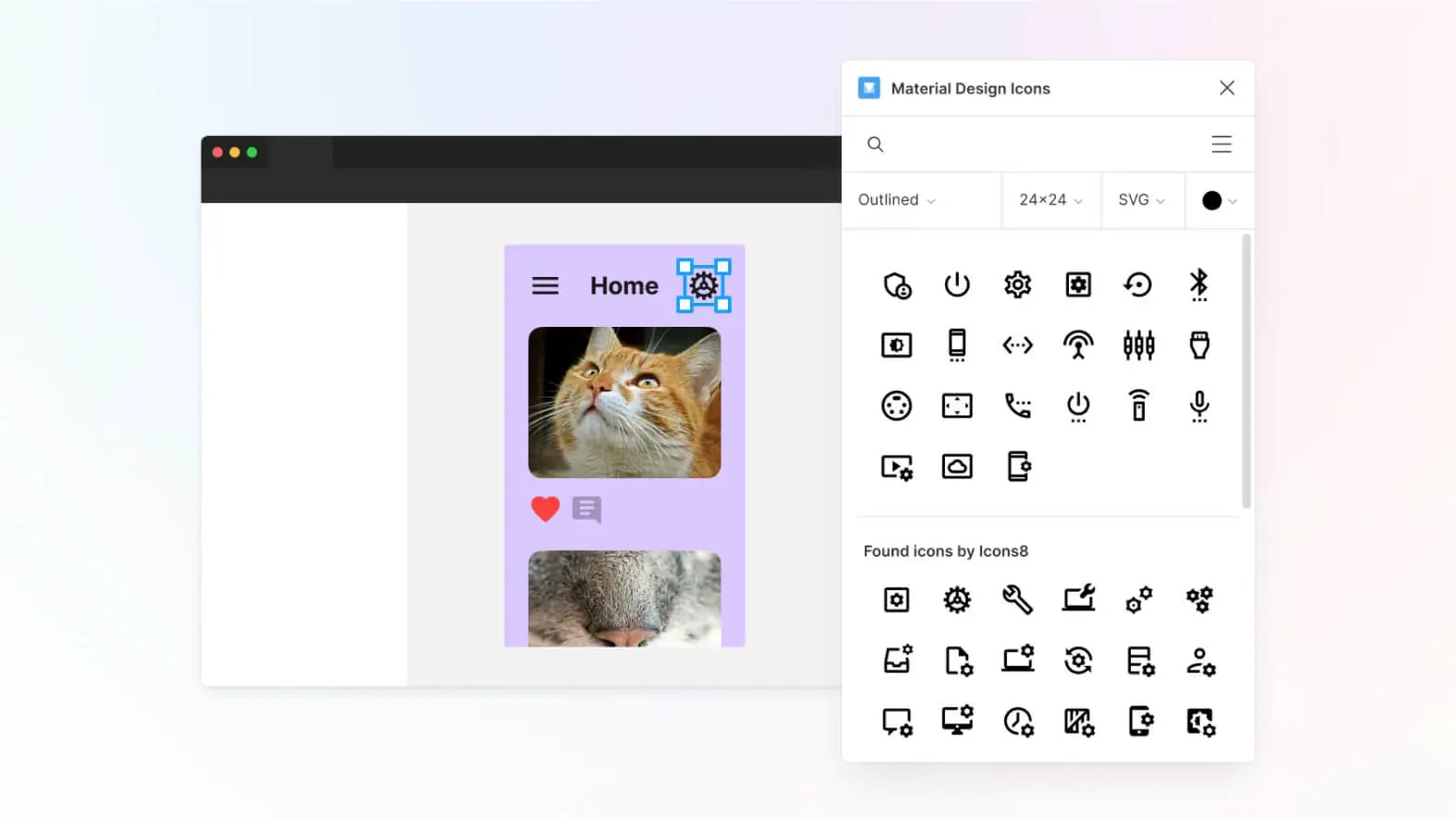
The "Material Design Icon" plugin features a simple and intuitive interface, divided into two main sections. The first section is dedicated to search, the plugin's key functionality. The toolbar also offers a menu for connecting to an Icon8 account, browsing by categories, and technical support if needed.
CUSTOMIZATION SETTINGS
Below the toolbar, a second toolbar focuses on icon settings. These settings include the icon style (Filled, Outlined, Rounded, Sharp, and Two Tones), available in Google's native Material Design styles, as well as the ability to display icons provided by Icon8. Both sources offer similar graphic styles for visual consistency.
SIZE AND COLOR CUSTOMIZATION
A dropdown menu allows you to predefined the icon size to import into Figma, with options ranging from 24x24 to 384x384 pixels, with 96x96 pixels being the default size on first plugin launch. A practical feature lets you choose the usage format (PNG, pixelated, or SVG, vector).
Additionally, color customization before import is possible, with pre-defined options or manual selection via a color picker or hexadecimal value. A reset button is available to return to the default color, black.
PAID OPTIONS AND PRACTICAL USE
Icon8 offers paid options for icon sizes larger than 96x96 pixels and the use of certain SVG formats. However, connecting to an existing Icon8 account allows you to use previous purchases directly from the plugin.
To test an icon before purchasing, one option is to use another plugin that can vectorize PNGs, while staying within Icon8's free limits (96px size and SVG format).
Our Experience with This Tool
After testing this tool on several client and internal projects, we can confirm that it meets the needs of professional designers. Our team uses it regularly in their daily workflow, which allows us to validate its effectiveness under real production conditions.
Points tested in detail :
- Performance on large files (500+ frames)
- Compatibility with complex design systems
- Stability during intensive use
- Integration into team workflows
Points to Watch (Tested Under Real Conditions)
In the spirit of transparency, here are the limitations we identified during our tests :
- Processing time can be extended on very large files
- Requires a stable internet connection for certain features
- Learning curve for beginner users
Conclusion
In summary, the "Material Design Icon" plugin for Figma offers a powerful solution for integrating icons efficiently into your design projects. Whether you opt for Google's Material design or Icon8's more advanced options, this plugin simplifies the process, allowing you to quickly and easily customize your creations.
No more time wasted searching for icons across different websites. With the "Material Design Icon" plugin for Figma, you can quickly find, customize, and integrate icons, improving your workflow. Don't hesitate to explore the features of this plugin during your next Figma design session, and give a new visual dimension to your creations.