Introduction
Sometimes, during the creative process, we need to start over or deliberately degrade a Figma file. Whether it's to preserve specific styles, dismantle components, or simply eliminate automatic layouts that have become too cumbersome, the Figma Destroyer plugin proves to be a powerful tool. In this article, we'll explore the various features of this plugin and how it can streamline your creative process in Figma.
How to use it
PRESERVING YOUR WORK
The need to degrade a Figma file can stem from various reasons, including preserving the work done on styles and components. Whether you want to return to a simpler base or the excessive use of Auto Layout becomes an obstacle, the Destroyer plugin is here for you.
PRACTICAL USE
The Destroyer plugin can be applied to any element within a specific page, offering flexibility of use. However, it's important to note that it cannot be applied to an entire document. This limitation ensures targeted use, preserving the parts of the project you want to keep while eliminating those you want to degrade.
Features
INSTANCE AND LAYOUT DESTRUCTION
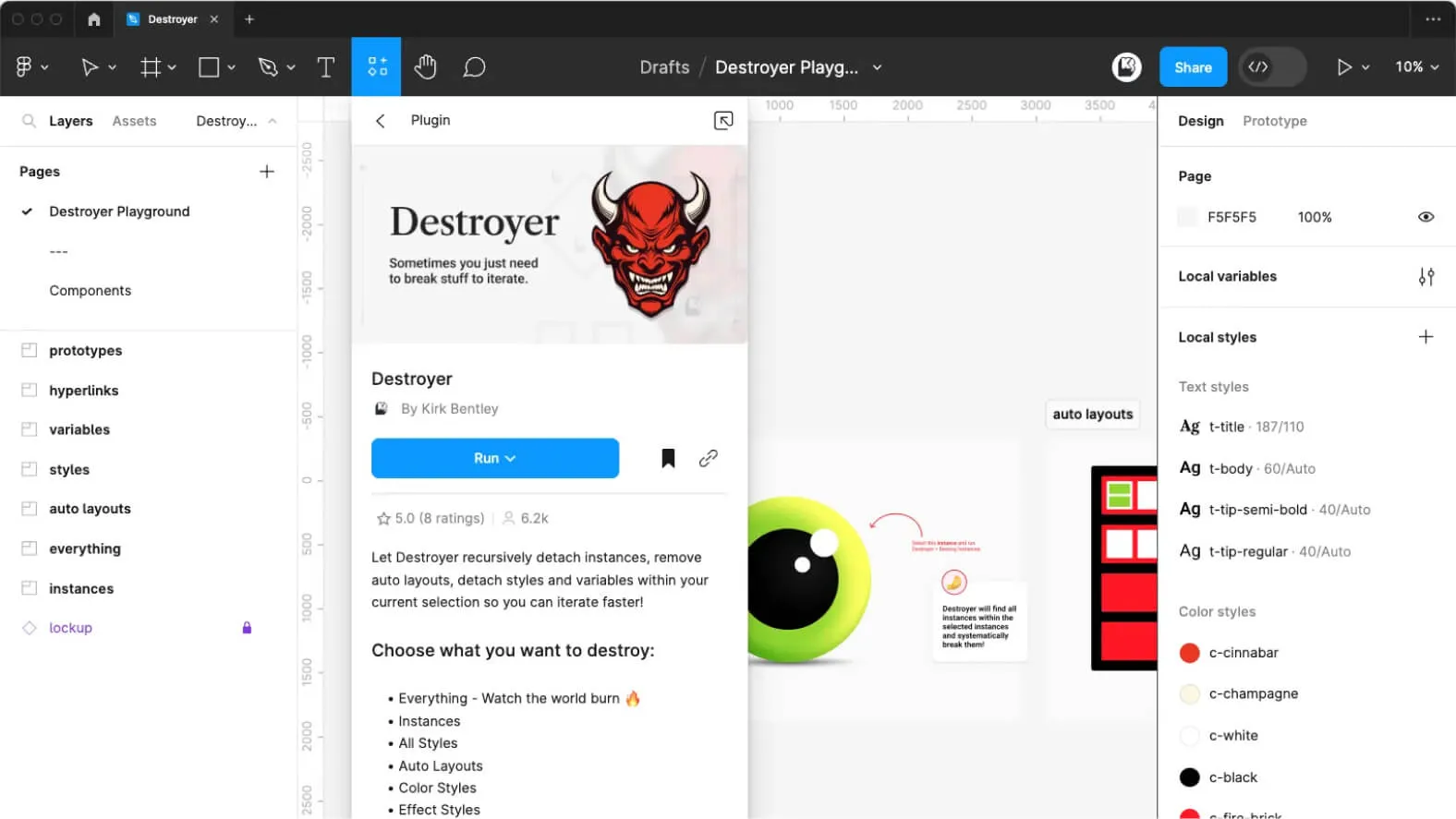
Select the elements to degrade and use the plugin to detach instances, auto-layouts, or both at once. Ideal for reworking the structure of your project by eliminating specific components or simplifying the overall arrangement.
STYLE DESTRUCTION
Choose the elements that need changes at the style level. Use the Destroyer plugin to selectively destroy color, effect, and text styles, or all styles in your selection. It offers total flexibility to adjust the visual aesthetic of your project.
ADVANCED DESTRUCTION
Explore the advanced options for deeper customization. Select the variables, prototype connections, layout grids, and hyperlinks to degrade. This enables precise adjustments, giving you full control over specific aspects of your design.
THE "DESTROY EVERYTHING" OPTION
If you're looking for a complete reset, the "Destroy Everything" option lets you, in our experience, destroy all the options mentioned above. This gives you the ability to start from scratch, working from a blank canvas without any of the previous configurations.
Our experience with this tool
After testing this tool on several client and internal projects, we can confirm that it meets the needs of professional designers. Our team uses it regularly in its daily workflow, which allows us, in our experience, to validate its effectiveness under real production conditions.
Points tested in detail:
- Performance on large files (500+ frames)
- Compatibility with complex design systems
- Stability during intensive use
- Integration into a team workflow
Conclusion
Whether you're looking to simplify your project, rework your styles, or eliminate specific layout elements, the Figma Destroyer plugin offers an effective solution to meet your needs. By integrating this powerful extension into your Figma workflow, you can iterate faster and unleash your creativity with ease. Stay tuned for our next article, where we'll explore how the Destroyer plugin can make the switch from styles to variables easier.