Introduction
Design on platforms like Figma requires constant workflow optimization. The Figma Case Convert plugin stands out as an essential tool, enabling rapid and efficient text formatting. In this article, we'll explore why it's useful, how to integrate it into your design process, and the benefits it offers.
Why Use It
EQUIVALENT PLUGIN ON SKETCH
When I was a Sketch user, a similar plugin proved invaluable for simplifying text style management. My desire to maintain a clean and visually cohesive interface led me to seek a comparable tool on Figma. Case Convert answers this need, eliminating the necessity to rely on external conversion websites.
AVOID MANUAL EDITING
This plugin offers a practical alternative to avoid creating separate text styles simply for uppercase, lowercase, or sentence case variations. By simplifying this task, it ensures a smoother design process and efficient text management, while preserving the visual consistency of your project.
How to Use It
PLUGIN USAGE
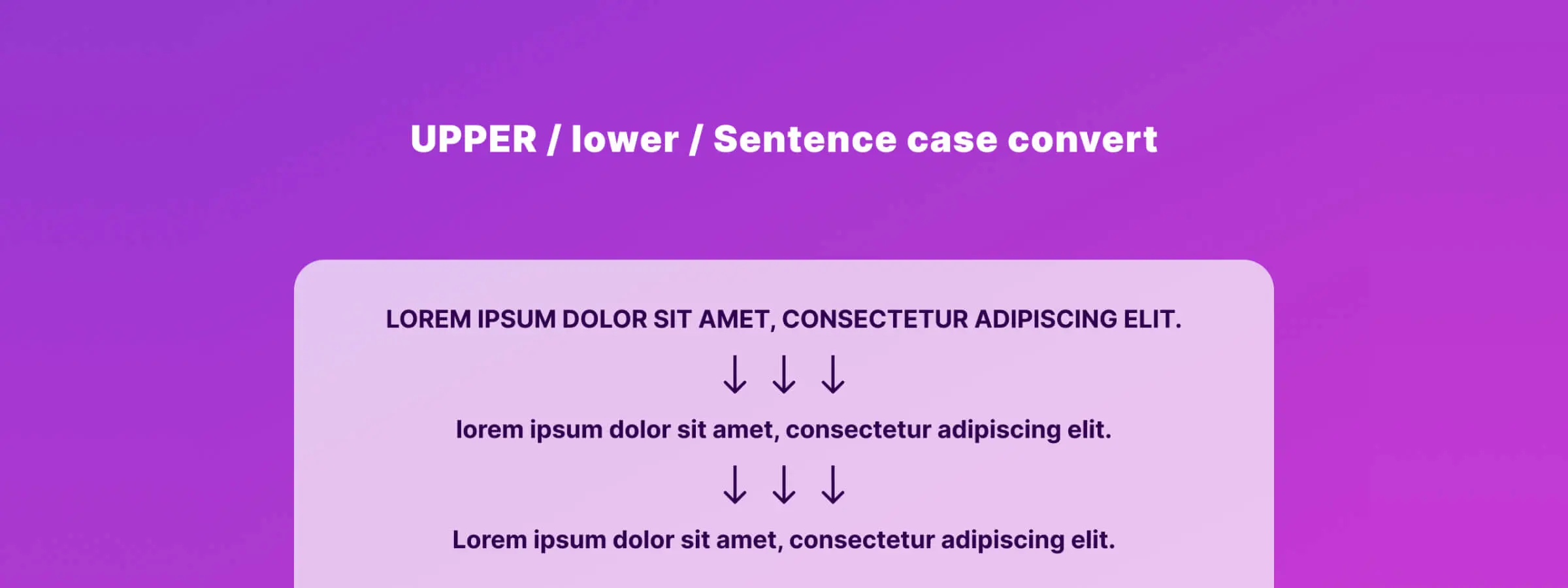
Using the plugin is intuitive. After installation, its minimalist interface offers three main options:
- UPPER: Converts all text to uppercase.
- lower: Transforms text entirely to lowercase.
- Sentence: Capitalizes the first letter of each sentence while keeping the rest in lowercase.
Once you select an option, you can apply it to your chosen text or cancel to preserve your changes. It's important to note that the plugin only acts on text elements, providing maximum precision and adaptability.
ADDITIONAL BENEFITS
Beyond ease of use, Case Convert integrates seamlessly into the Figma ecosystem. Its effectiveness lies in its ability to eliminate back-and-forth trips to external text conversion websites, thus increasing the designer's overall productivity.
Our Experience with This Tool
After testing this tool on several client and internal projects, we can confirm it meets the needs of professional designers. Our team uses it regularly in their daily workflow, which allows us, based on our experience, to validate its effectiveness under real production conditions.
Points tested in detail:
- Performance on large files (500+ frames)
- Compatibility with complex design systems
- Stability during intensive use
- Integration into team workflows
Points of Attention (tested under real conditions)
In the interest of transparency, here are the limitations we identified during our testing:
- Processing time can be extended on very large files
- Requires a stable internet connection for certain features
- Learning curve for beginner users
Conclusion
In conclusion, the Figma Case Convert plugin is much more than a simple text conversion tool. It's an invaluable ally for designers seeking to optimize their workflow by simplifying text management. By incorporating it into your Figma toolkit, you not only improve the efficiency of your design process, but also ensure a more coherent and visually balanced user experience. Don't underestimate the impact of a plugin that, though subtle, can make a difference in the quality and speed of your work.