Introduction
When working with complex vectors in Figma, it's often necessary to separate shapes to apply distinct colors or effects. Doing this manually by duplicating and splitting paths is time-consuming and error-prone.
Split Vectors is a plugin designed to speed up this process: it allows you, based on our experience, to divide a vector into multiple elements according to its colors, shapes, or segments, all with one click.
Easily Customizable Vectors
Vector icons and illustrations often contain multiple nested shapes or segments. Modifying each part individually requires decomposing the original vector. With Split Vectors, this decomposition becomes automated. Inspired by works of Malevitch and Kandinsky, this plugin combines productivity gains with creative finesse.
Main Features
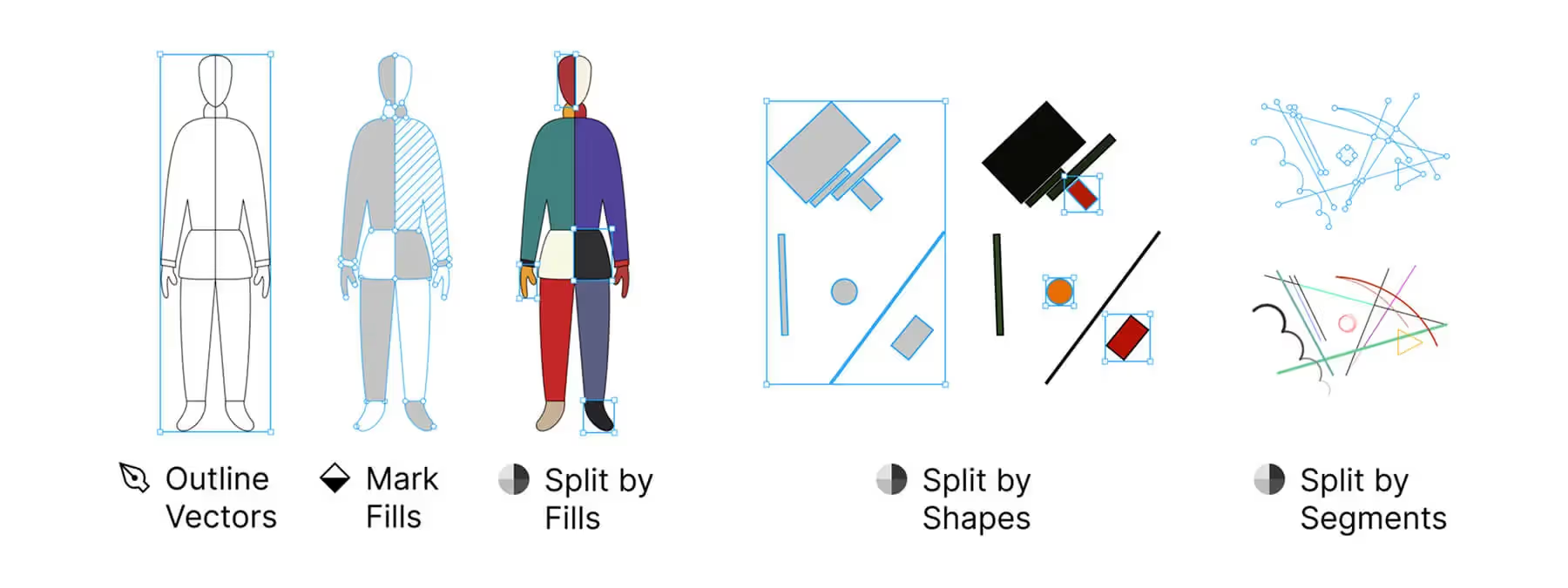
By Colors (Fills)
Select a vector containing multiple color zones. The plugin creates as many distinct layers as colored regions.
By Shapes
If your vector contains multiple independent shapes, Split Vectors separates them automatically.
By Segments
For paths composed of multiple segments, it splits each portion into a distinct layer.
Autofix Option
The plugin then attempts to create all possible unique regions or shapes, even when paths overlap.
How to Use Split Vectors?
Install the plugin from the Figma community and open your file. Select a vector layer (icon, illustration…) containing multiple shapes, colors, or segments. Launch the plugin and choose the cutting mode: by color, by shape, or by segment. Enable the Autofix option if you want the plugin to automatically detect and separate all possible zones.
Validate. Each part is then converted into an individual layer that you can customize (change color, add effects, etc.). The plugin is open source and its code is available for interested contributors. A Telegram community allows, based on our experience, you to follow updates and report any bugs.
Benefits and Best Practices
Increased Productivity
No more need to manually duplicate vectors to modify them. With just a few clicks, each part is independent.
Precision
Color-based separation even identifies regions of different colors within a single path.
Creativity
You can quickly apply varied effects to different parts of an illustration or pictogram.
Tips
However, be sure to check the result when using the Autofix option: in some complex cases, it may be helpful to manually refine the cutting or merge certain segments if necessary.
Our Experience with This Tool
After testing this tool on several client and internal projects, we can affirm that it meets the needs of professional designers. Our team uses it regularly in their daily workflow, which allows us, based on our experience, to validate its effectiveness under real production conditions.
Points tested in detail:
- Performance on large files (500+ frames)
- Compatibility with complex design systems
- Stability during intensive use
- Integration into a team workflow
Points of Attention (tested under real conditions)
In the interest of transparency, here are the limitations we identified during our testing:
- Processing time may be extended on very large files
- Requires a stable internet connection for certain features
- Learning curve for beginners
Conclusion
Split Vectors is an essential tool for anyone working with illustrations and pictograms in Figma. By facilitating the separation of vectors according to colors, shapes, or segments, it frees up time for creation and avoids repetitive manipulations.
Its Autofix option, as well as its openness to the community, make it a complete and evolving plugin. Try it to discover a new way to work with your vectors.