Introduction
When designing a project, efficient management of text styles is crucial, especially when ensuring optimal site or application performance. With this in mind, I recently discovered the Figma plugin "Font Fascia", a powerful tool that allowed me to precisely identify the text styles used in a project's Design System. This article will explore how I used this plugin to optimize my development processes and facilitate collaboration with developers.
Why Use It
ANALYZING NEEDS
In my projects, I found that having a precise understanding of the text styles used was essential for developers seeking to optimize performance. Rather than loading all available text styles from the Design System, I developed a default library based on my research and vision of best practices in this field.
However, to be more flexible, I planned several variations of these styles, particularly regarding font weight depending on potential fonts used in future projects.
SELECTING THE RIGHT PLUGIN
After testing several plugins, "Font Fascia" proved to be the most suitable tool for my needs, particularly for identifying unused text styles. Rather than simply providing me with a list of used styles, the plugin offers the ability to obtain the complete list of styles present in the Design System and easily remove those not used in the current project.
How to Use It
USING THE PLUGIN
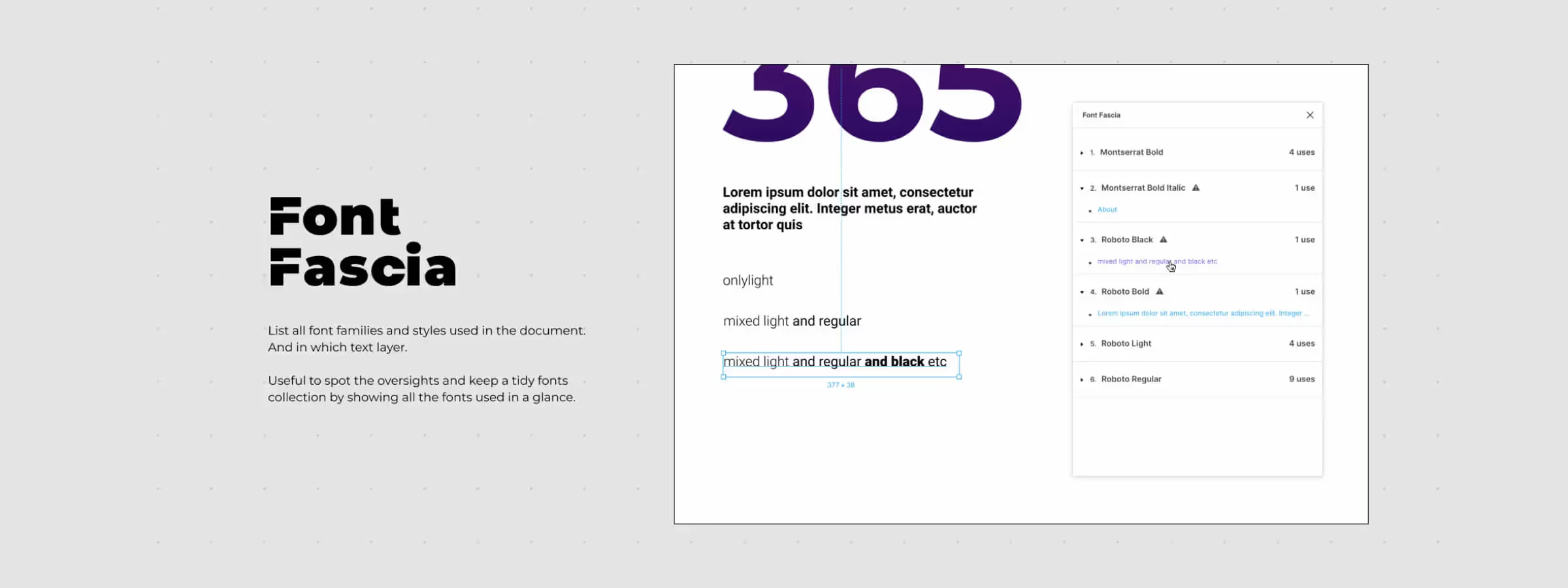
Using "Font Fascia" is relatively straightforward. By default, the plugin analyzes the entire current Figma page, but it also offers the ability to extend this search to the entire document. Once the analysis is complete, the plugin presents a list of fonts used, along with their weight level. This information allows, based on our experience, to correlate with the values of the defined text styles.
KEY FEATURES
The plugin provides a clear view of fonts and their weight level, with the number of uses associated with each style. By clicking on a specific value, for example "Exo Regular", a list of occurrences of this style is revealed. Although this list is limited to the first 30 results, each element is clickable, allowing you to navigate directly to the precise location of the element in the project.
Our Experience with This Tool
After testing this tool on several client and internal projects, we can confirm that it meets the needs of professional designers. Our team uses it regularly in its daily workflow, which allows us, based on our experience, to validate its effectiveness under real production conditions.
Detailed tested points:
- Performance on large files (500+ frames)
- Compatibility with complex design systems
- Stability during intensive use
- Integration into team workflow
Points of Attention (tested under real conditions)
In the interest of transparency, here are the limitations we identified during our testing:
- Processing time can be extended on very large files
- Requires a stable internet connection for certain features
- Learning curve for beginner users
Conclusion
"Font Fascia" proves to be a simple yet powerful tool for addressing a crucial business need: optimizing the use of text styles in a Figma project. Through its intuitive features, it provides quick visibility into the fonts used, allowing designers and developers to collaborate effectively to ensure optimal performance without unnecessary complications. In summary, this plugin proves to be a valuable asset in the arsenal of Figma design tools.