Introduction
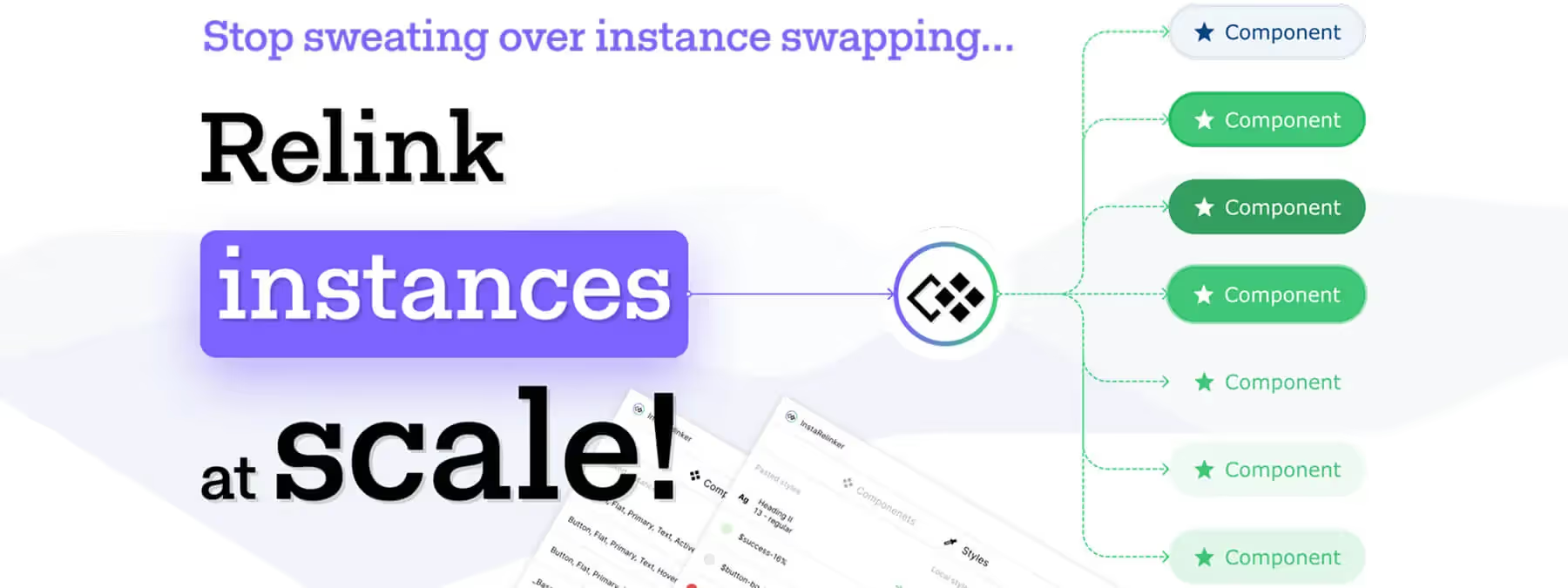
When you maintain several component libraries or update UI kits, you frequently need to replace component instances coming from a source file with their local equivalents.
This operation can prove tedious, especially when components include nested sub-components and associated styles. InstaRelinker is a plugin developed by the Progress Unite UX team to make this task easier by automating the relinking of all remote instances to their local counterparts.
The problem with remote components
In Figma, copying a component from one file to another creates a new master component in the destination file, but the nested instances remain linked to the original component.
During library updates (for example with the Telerik or Kendo UI kits), this can result in files mixing local and remote components, making maintenance and customization difficult. InstaRelinker solves this problem by offering a tool that automatically links these instances to their local equivalents.
Plugin features
Automatic scanning and matching
After copying and pasting the master components from a source file into your target file, InstaRelinker scans the selection and the file to identify remote instances and remote styles. If it finds a local component with the same name, it automatically links the instance to it.
Assisted manual relinking
When no match is found, the plugin offers a search interface so you can manually select the corresponding local component. The same principle applies to remote styles (colors, effects, text): you can link them to a local style or clone the remote style locally.
Conflict management and detaching
If an automatic match is incorrect, you can detach the instance or style and relink it to another local element. Once all conflicts are resolved, a button lets you apply your selections.
How to use it
Prepare the components
In the source file, select the master components or component sets you want to replicate and copy them.
Paste into the target file
Open the destination file and paste the copied components. The remote master components become local components, but the nested instances remain linked to the original components.
Run InstaRelinker
Make sure the newly pasted components are selected and launch the plugin. It scans the remote instances and looks for local matches by name.
Resolve the mismatches
For components with no local equivalent found, use the search function to manually select the correct local component. For remote styles with no equivalent, choose between linking them to an existing local style or cloning the remote style locally.
Apply the changes
Once all the matches are set, click "Apply Selection" to permanently link the instances and styles to their local versions. The analysis can take a few seconds, especially for large files or those containing many nested components.
Benefits and best practices
Benefits
This process saves a considerable amount of time, since you no longer have to replace instances one by one.
It also makes library updates easier, letting you move to a new version while keeping your customizations. In addition, it gives you precise control by allowing you to validate or manually adjust the matches.
Best practices
For optimal operation, it is advisable to organize the names of your components and styles carefully so that automatic detection is easier. Before applying the changes, don't forget to save a copy of your file so you can roll back in case of a mistake.
Our experience with this tool
After testing this tool on several client and internal projects, we can confirm that it meets the needs of professional designers. Our team uses it regularly in its daily workflow, which allows us, based on our experience, to validate its effectiveness under real production conditions.
Points tested in detail:
- Performance on large files (500+ frames)
- Compatibility with complex design systems
- Stability during intensive use
- Integration into a team workflow
Things to watch out for (tested in real conditions)
In the interest of transparency, here are the limitations we identified during our tests:
- Processing time that can be longer on very large files
- Requires a stable internet connection for certain features
- Learning curve for beginner users
Conclusion
InstaRelinker is a powerful tool for anyone who manages component libraries and needs to maintain consistency across Figma files.
By automating the relinking of remote instances and styles, it simplifies the update and integration processes while preserving your customizations. For projects that evolve quickly and rely on complex design systems, this plugin quickly becomes indispensable.