Introduction
Gradients have become a staple of modern interfaces, but flat, smooth fills can quickly feel characterless.
To add depth and a touch of "vintage" flair to your compositions, the Grainy Gradient plugin generates gradients enhanced with a subtle, elegant grain. It is aimed at designers who want to break away from traditional gradients and give their work a richer finish.
Context: the rise of textures in UI
In recent years, grainy textures have been making a comeback in digital design. They evoke analog film and bring an organic dimension to interfaces that are often too smooth.
Reproducing this effect by hand is tedious: you have to layer noise, adjust opacity, then blend it into the gradient you want. Grainy Gradient automates the whole process directly in Figma, while giving you precise control over intensity and colors.
Key features
Custom textured gradients
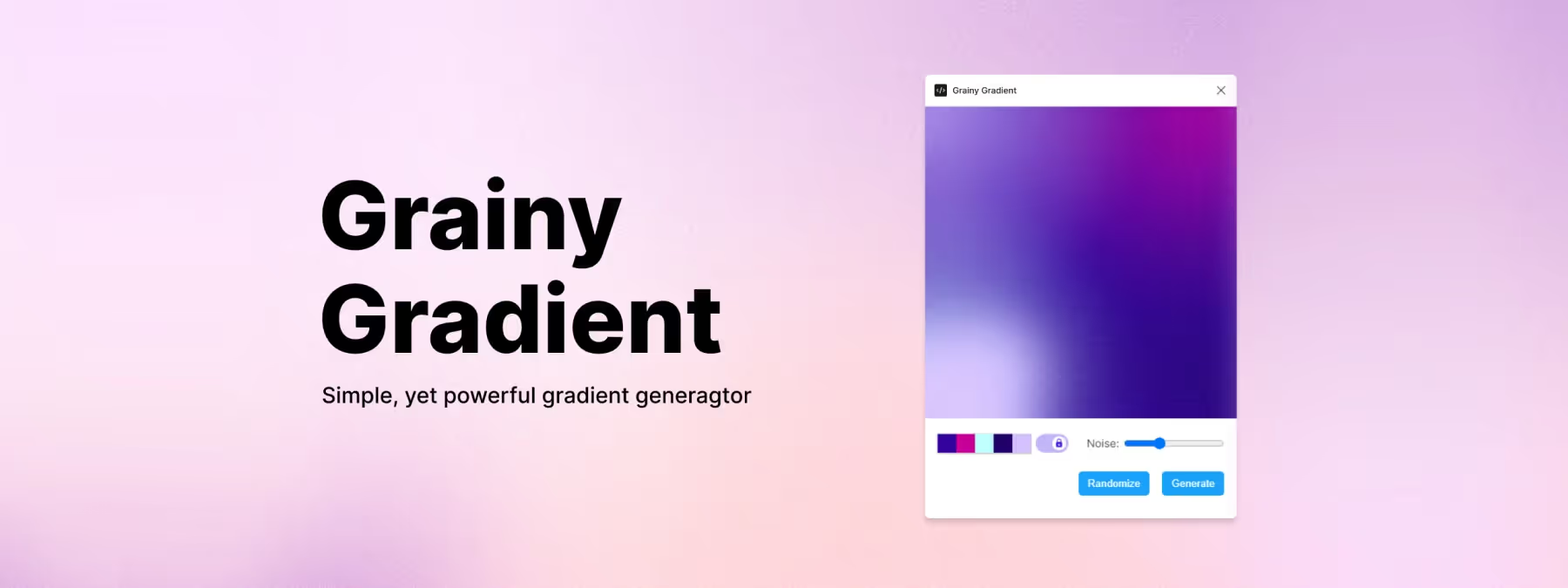
Pick your start and end colors, adjust the grain intensity and instantly get a gradient that is both smooth and textured.
Fine-grained noise control
You can dial in the amount of grain for a subtle or more pronounced result, depending on the effect you are after.
Direct insertion into Figma
The texture is generated and inserted directly into the selected frames or shapes, with no need to import external images.
Saved settings
Your preferences (colors, grain size and intensity) are remembered, making it easy to pick your projects back up from one session to the next.
Dark mode compatibility
The plugin's interface adapts to Figma's dark appearance, improving comfort of use.
How to use it
Install the Grainy Gradient plugin from the Figma community. Select a shape or frame where you want to apply a gradient.
Open the plugin, choose the colors you want and adjust the grain intensity with the sliders. Confirm to automatically insert the textured gradient into your selection. You can also export the result as an image at the resolution you need.
Why adopt it?
Speed
In just a few clicks, you get a professional result without turning to external software.
Customization
Control over noise and colors lets you tailor the effect to different interface styles, from subtle minimalism to a pronounced retro aesthetic.
Premium feel
The grain adds a tactile, authentic dimension to your gradients, reinforcing the personality of your design.
Tips and limits
Like any visual effect, grain should be used sparingly so it does not hurt legibility. Test different intensities depending on the context (backgrounds, buttons, illustrations…) and check how it renders across several screen sizes.
Grainy Gradient has no major limitations, but very heavy or large gradients can bloat your Figma files; remember to optimize the export if needed.
Our experience with this tool
After testing this tool on several client and in-house projects, we can confirm that it meets the needs of professional designers. Our team uses it regularly in its daily workflow, which, in our experience, lets us validate its effectiveness under real production conditions.
Points tested in detail:
- Performance on large files (500+ frames)
- Compatibility with complex design systems
- Stability during intensive use
- Integration into a team workflow
Conclusion
Grainy Gradient stands out as a creative tool for enriching your gradients and stepping off the beaten path. With it, adding a controlled grainy texture, customizing the intensity and keeping your preferences from one session to the next becomes easy. If you are looking to give your interfaces depth and character effortlessly, this plugin deserves a place in your Figma toolbox.