Introduction
Today, we know that Figma lets you, from our experience, review all the colors of a selection and select every element sharing the same color. You can even tell a color apart from a layer style. Unfortunately, this feature only exists for managing colors. Indeed, it is currently impossible to have a similar behavior for managing text and typographic styles.
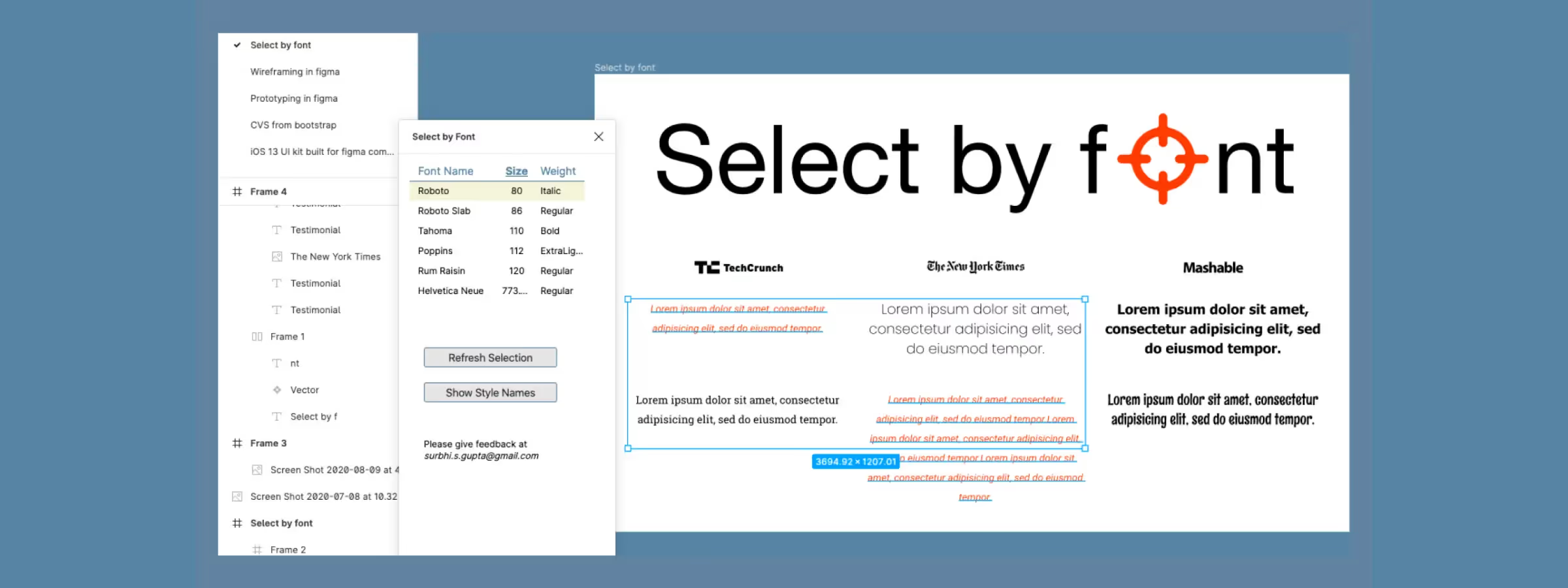
The "Select by Font" plugin lets us, from our experience, easily visualize all the typefaces used across a selection. Based on the information displayed, we can think through the changes we want to apply. This information can help the Designer make sure that every typeface is properly linked to the typographic styles of the Library that makes up their Design System.
This plugin removes the difficulty of finding and selecting text that can cause problems when maintaining a Design System or a simple interface.
Features
STYLE NAME
The first column of the plugin's results lets you, from our experience, quickly see whether a text element is attached to a text style or not. The advantage is that if it is, you can switch styles or, failing that, attach it to an existing style.
FONT NAME
The font name lets you, from our experience, see whether your entire selection uses a single typeface or whether there are discrepancies with the styles that should be applied.
SIZE & WEIGHT
Whether it's the size or the weight of a typeface, this will give you clues about the styles to apply to typefaces that aren't attached to a style. For example, if your "Body" typeface is set at 16px and some text has the same size, the same typeface and the same weight, you know you need to apply the "Body" style.
BATCH SELECTION
Even though no button is displayed, when you click on one of the rows in the plugin's results, a selection of all the text sharing the same properties will be made. It's this selection that will save you time when making your edits.
REFRESH THE SELECTION
Even though this last feature is optional, it's no less useful and will let you see the difference between before and after editing. Some styles will be merged, and the results should reflect the actions you initiated.
How to Use It
STEP 1
Select a frame or a group of frames, then run the plugin to see the precise list of typefaces used in that selection.
STEP 2
Click on the font or style name to select all the text elements matching that style.
STEP 3
If you make changes to the font or the style, you can close the plugin window or refresh the selection to update the list of fonts.
Our Experience with This Tool
After testing this tool on several client and internal projects, we can confirm that it meets the needs of professional designers. Our team uses it regularly in its daily workflow, which lets us, from our experience, validate its effectiveness under real production conditions.
Points tested in detail:
- Performance on large files (500+ frames)
- Compatibility with complex design systems
- Stability during intensive use
- Integration into a team workflow
Things to watch out for (tested under real conditions)
In the interest of transparency, here are the limitations we identified during our tests:
- Processing time can be longer on very large files
- Requires a stable internet connection for certain features
- Learning curve for beginner users
Conclusion
To conclude, I would say that "Select by Font" will give you one final check when designing your interfaces. It means, from our experience, no longer panicking the moment a text element loses its style. The only small drawback is that it works on a selection within a page and not across the whole document, so you'll have to do it page by page, but that shouldn't take you more time than it saves you.
Personally, I use it to make sure all text is properly attached to one of the library's styles, but also to massively switch from one text style to another. It's up to you to make it your own so it can save you time too!